Finding your way around
AptiveAI Agents is where you work with your agents: you start tasks, follow them, answer your agents and set everything up. This page walks through it from the sidebar down, so you know where each thing lives. Every section links to the page that explains it in full.
The sidebar
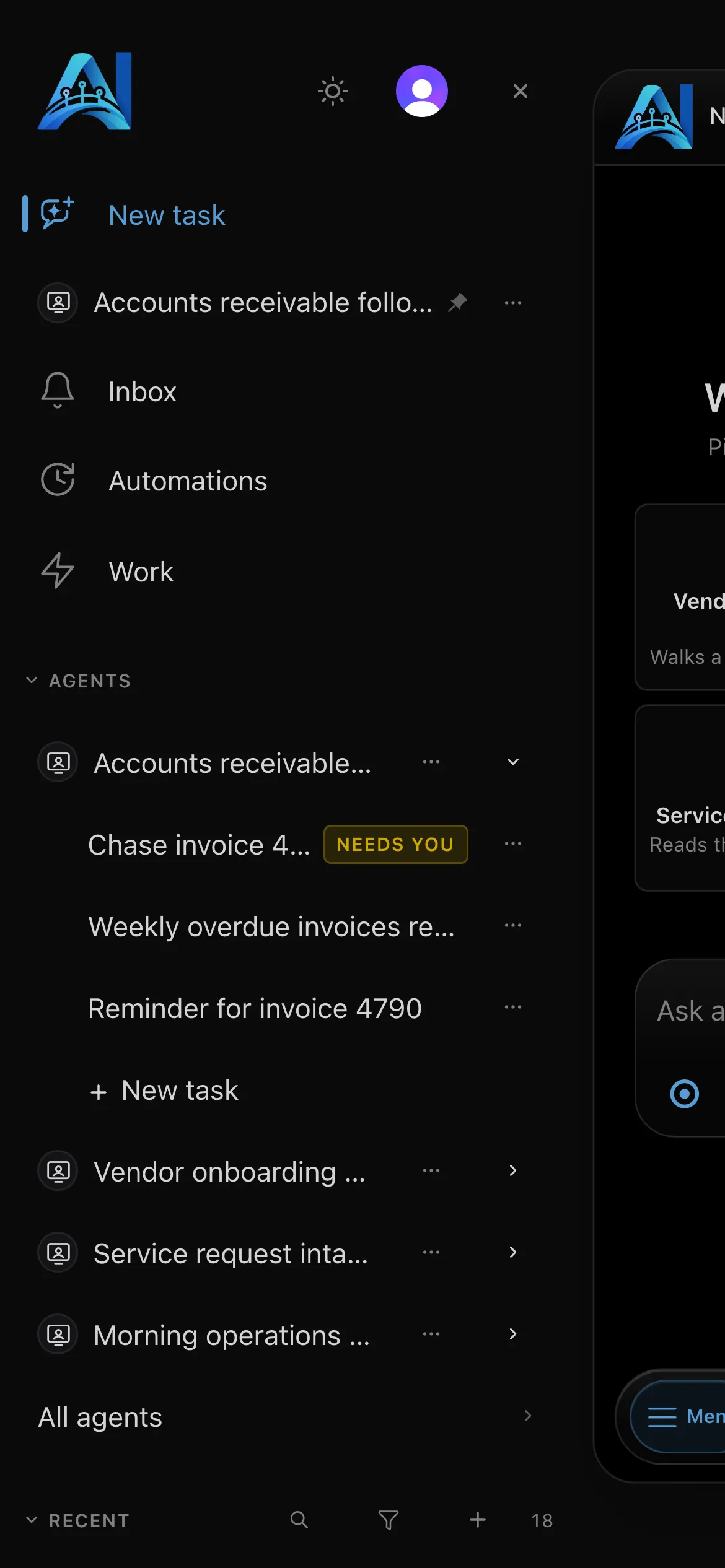
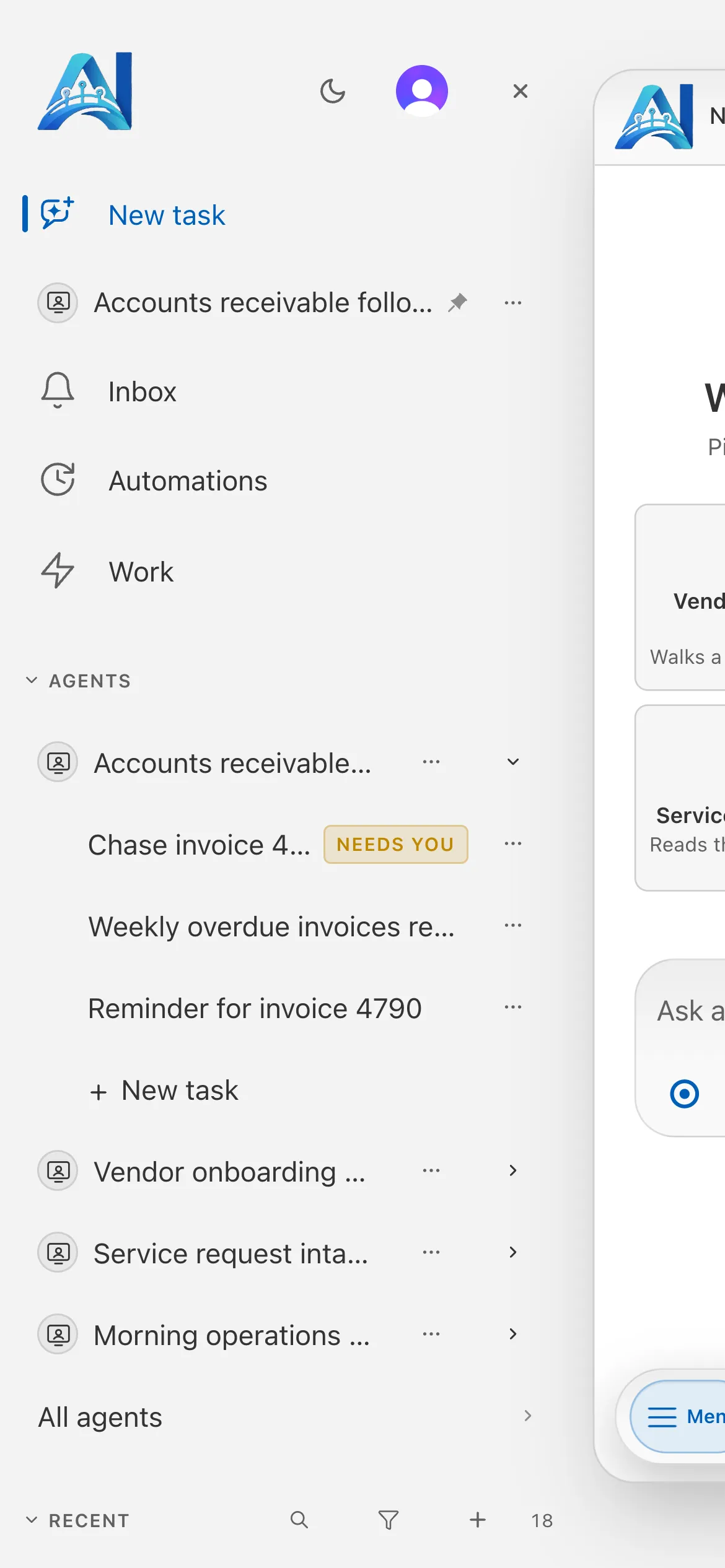
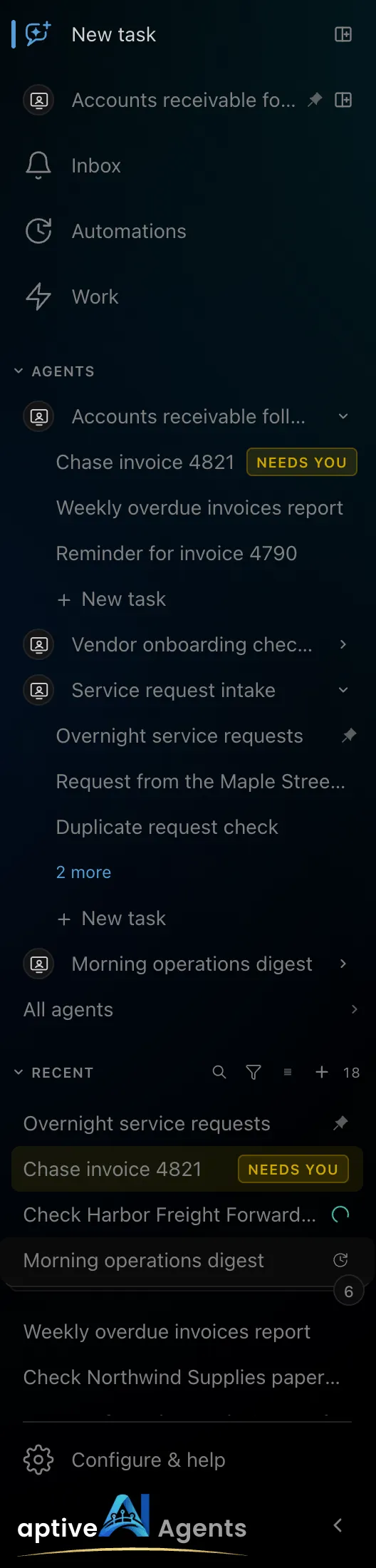
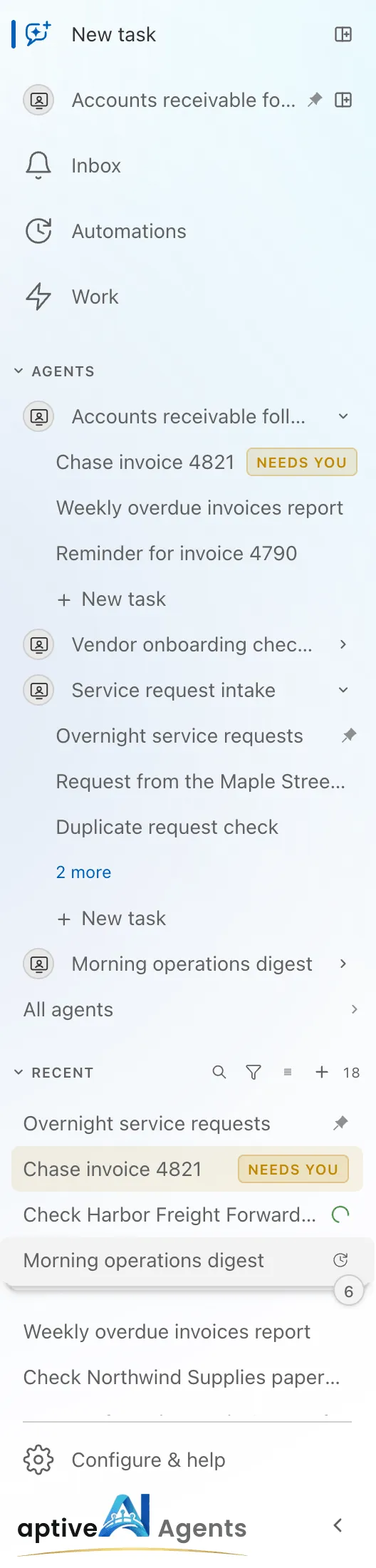
Section titled “The sidebar”The sidebar is the same on every page. From the top:
| Row | What it does |
|---|---|
| New task | The first page of AptiveAI Agents, where work starts. See Starting work with an agent. The control at the end of the row opens a new task beside the page you are on, so you can start one without leaving it. |
| Pinned agents | Agents you have pinned get a row of their own, right under New task, marked with a pin. Clicking one starts a task with that agent. Each has its own beside the page control, which opens a new task with that agent already chosen, next to the page you are on. |
| Inbox | What your agents need you to see — see the Inbox. |
| Automations | Every automation you can see — the tasks that run on their own. |
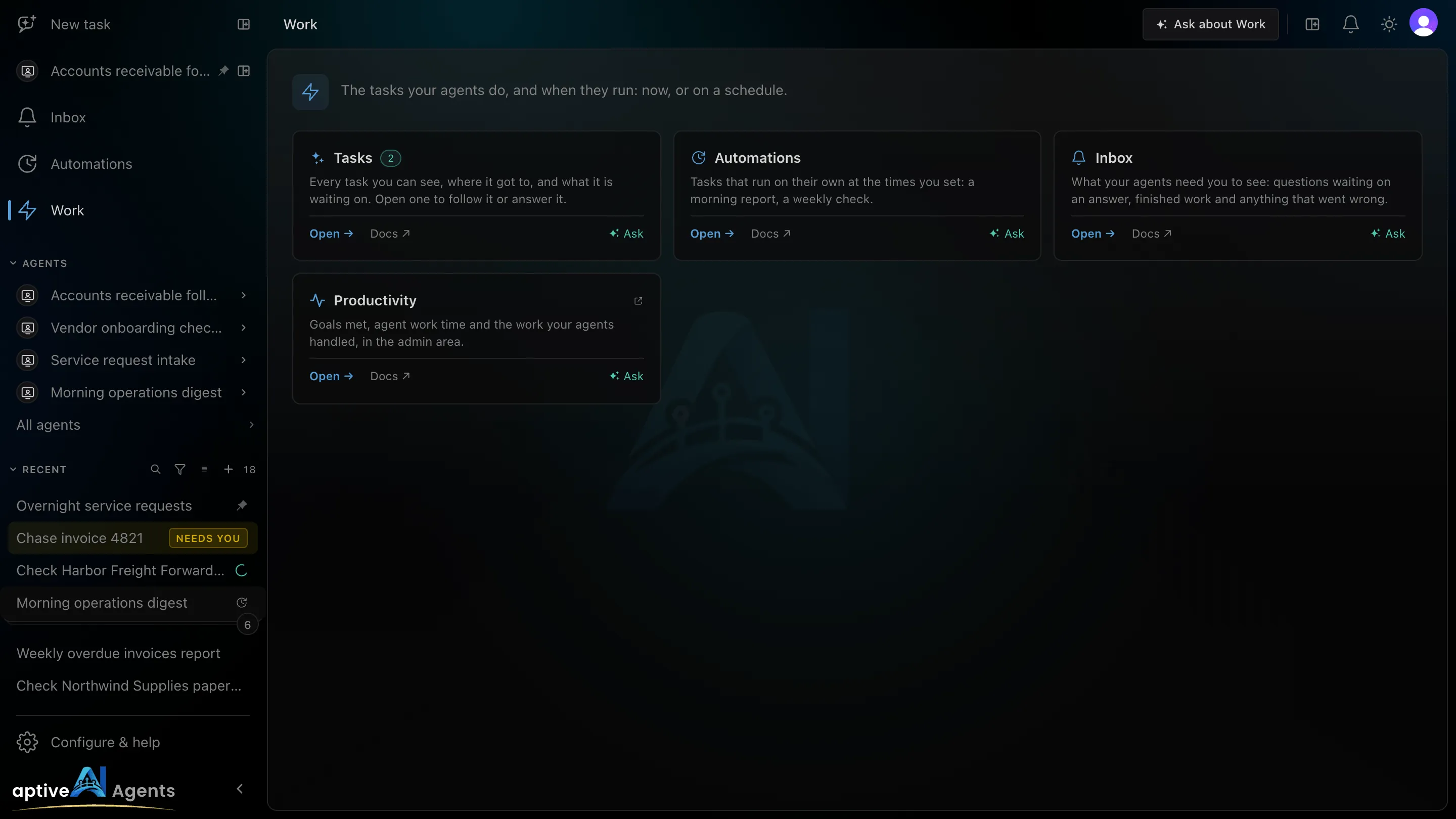
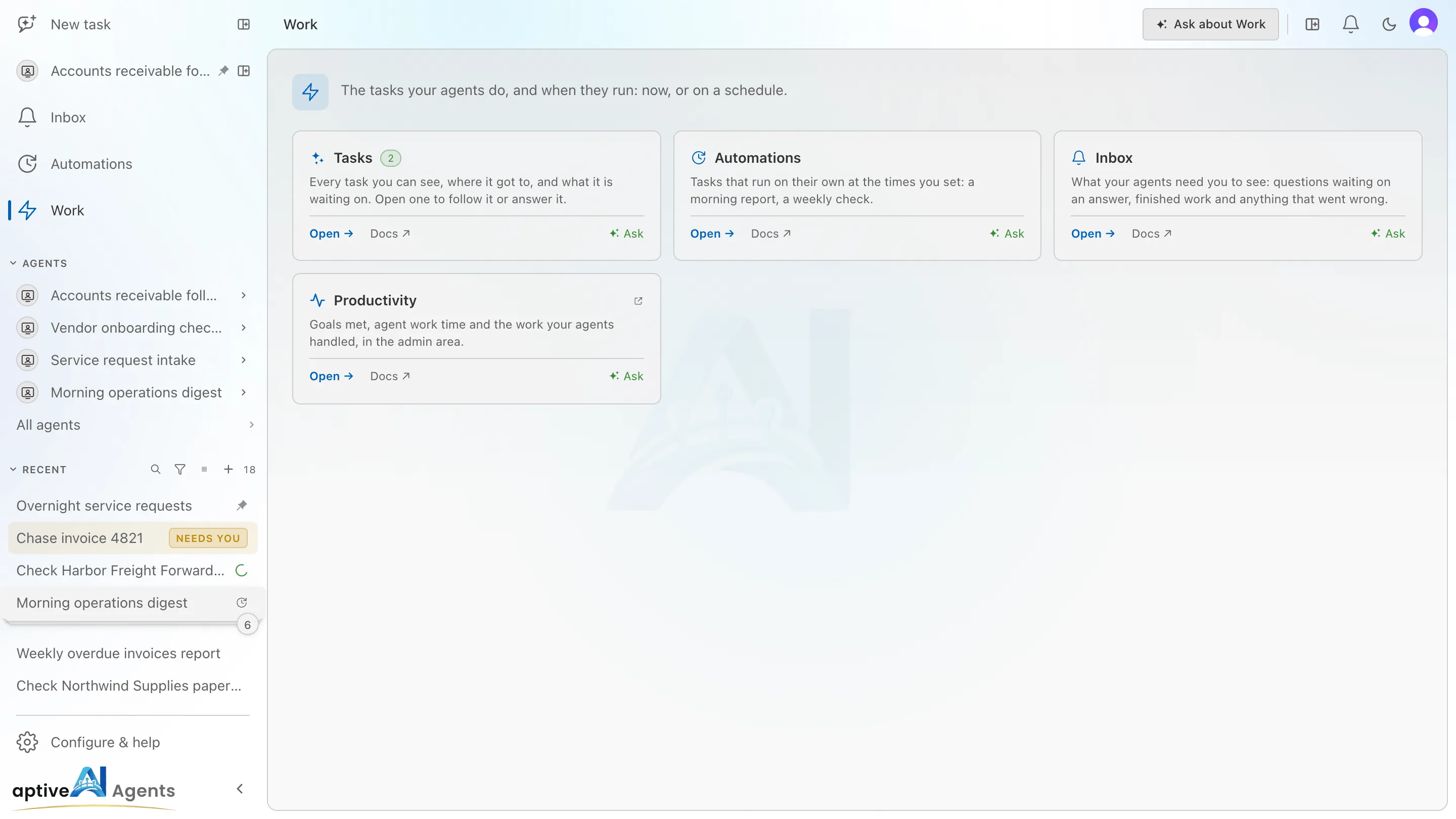
| Work | A page of cards for tasks, automations and the Inbox. |
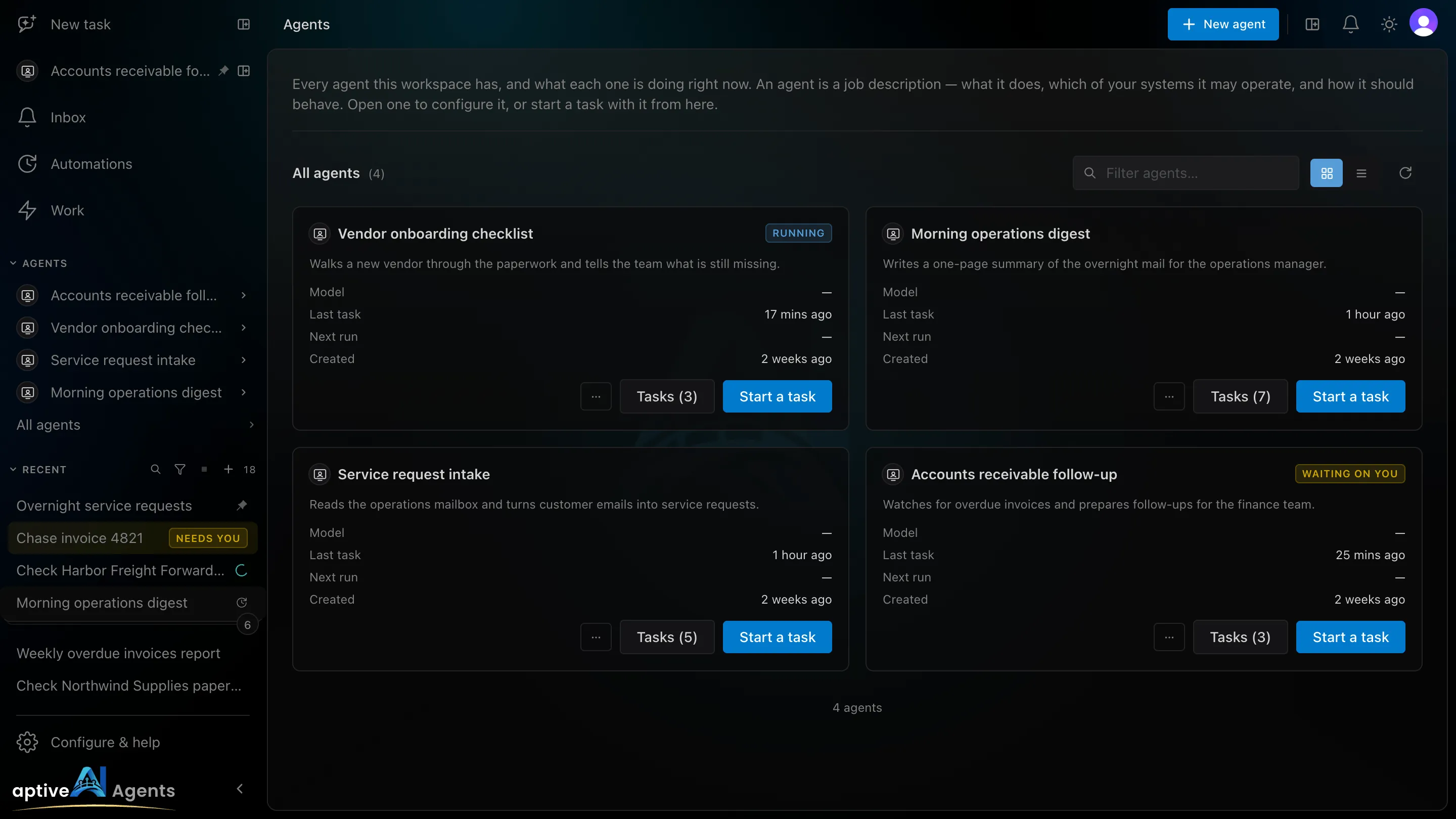
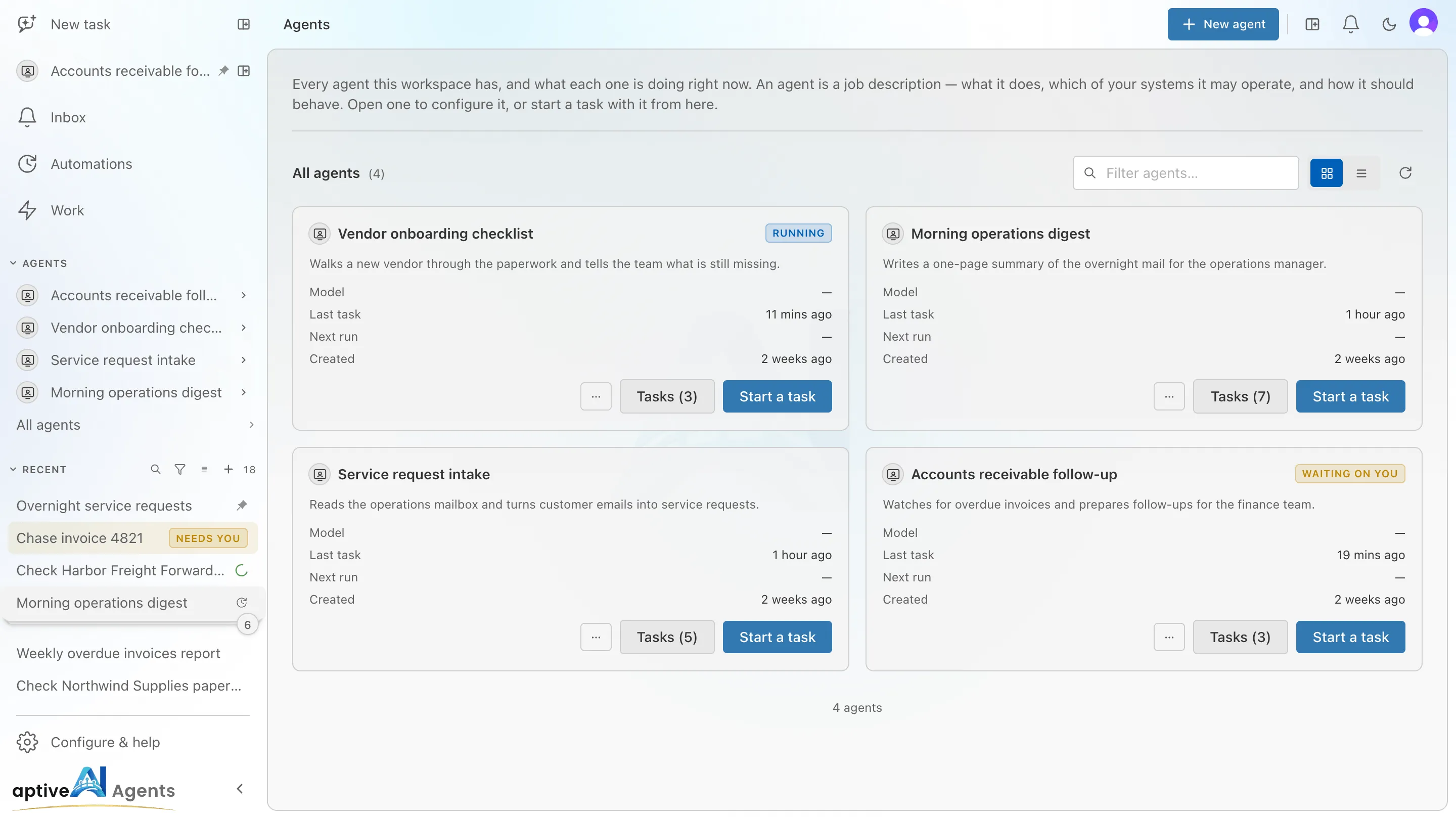
| AGENTS | A short list of agents with their latest tasks under each. See Agents in the sidebar. |
| RECENT | Every task you can see, newest and most urgent first. See Recent tasks. |
| Configure & help | At the very bottom, below a line. One page of cards for your agents, connectors and skills, your settings, and help. |
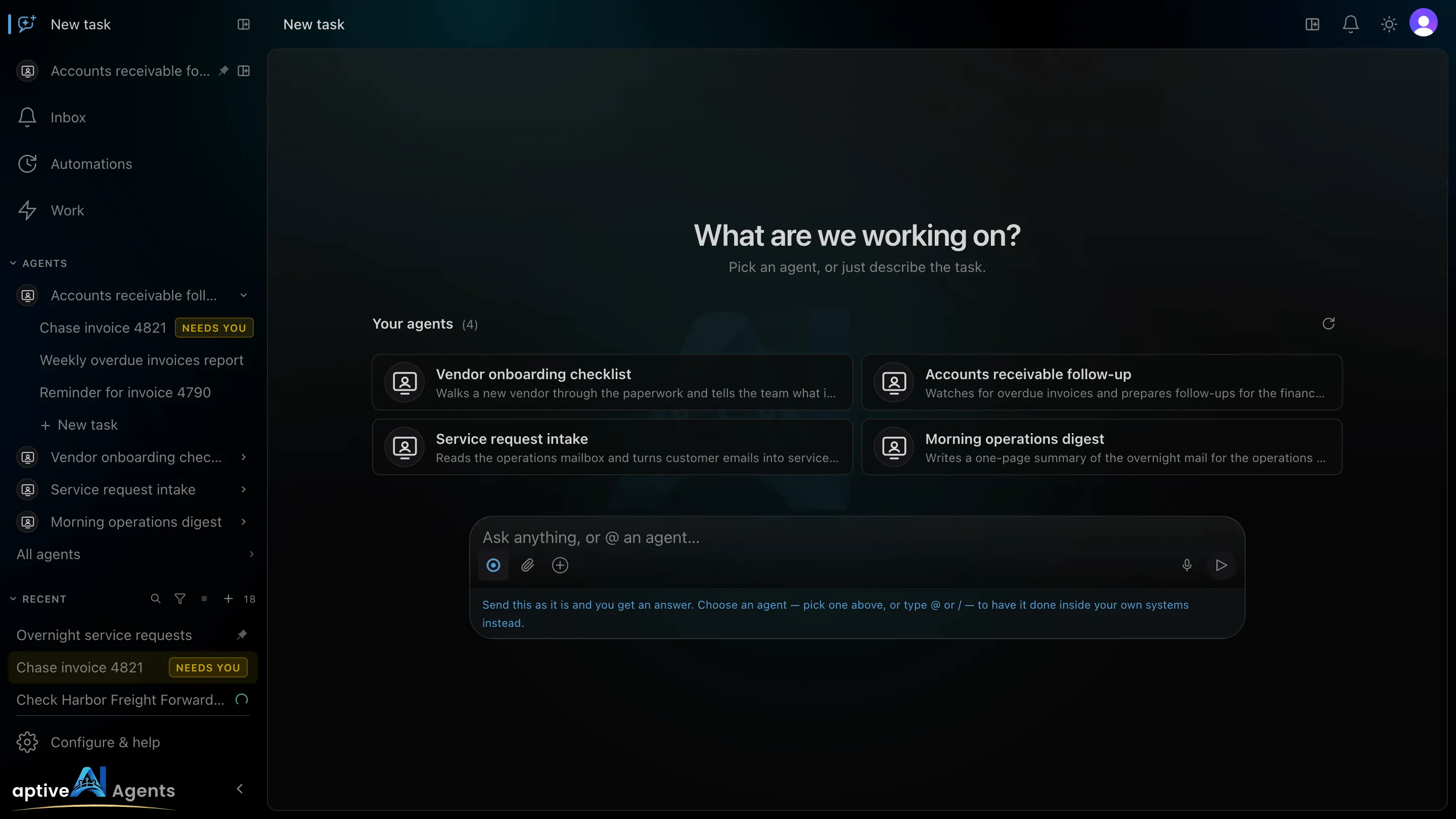
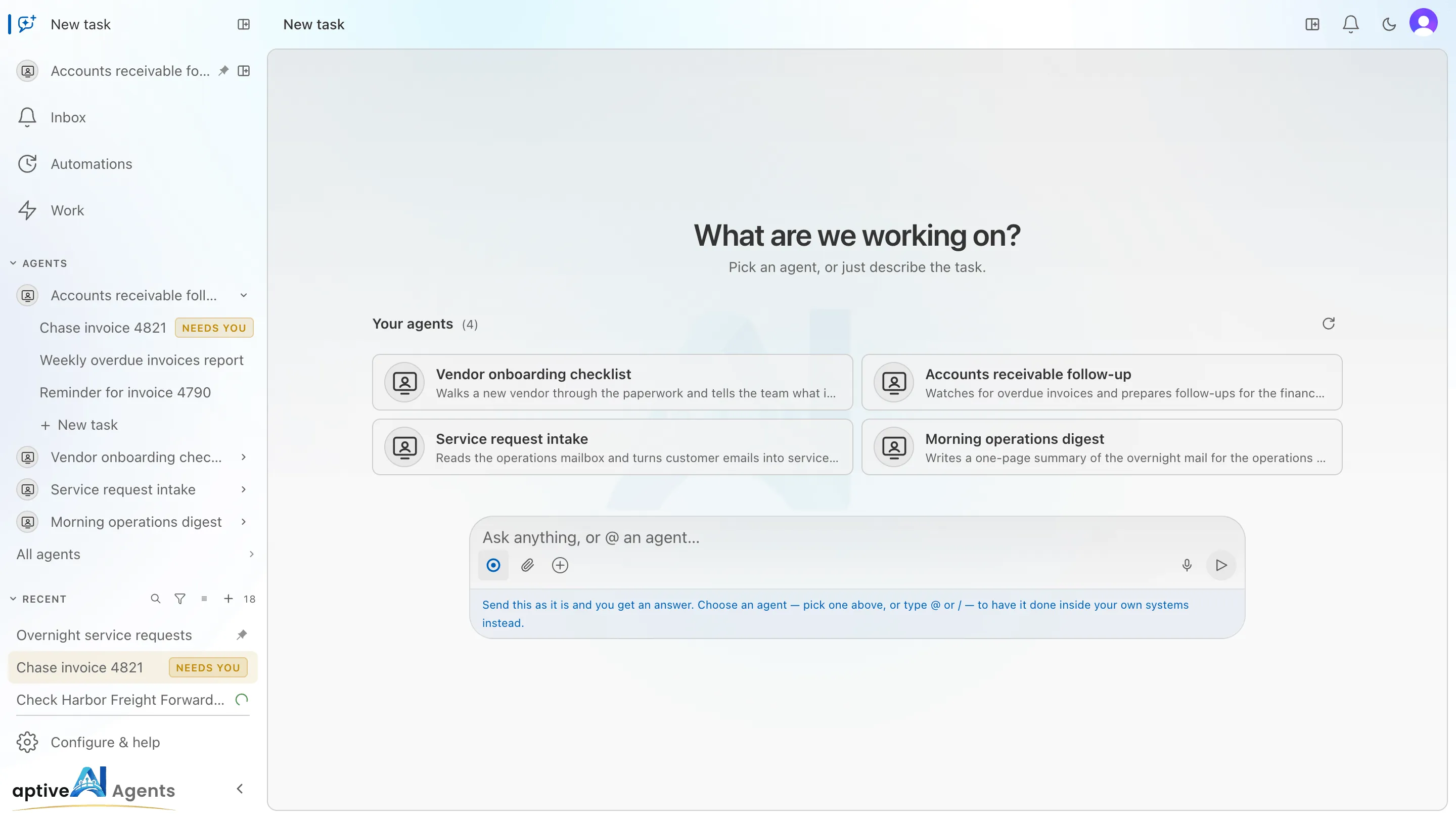
Work stays highlighted while you are on a task, Automations while you are on an automation, and Configure & help while you are on connectors, skills or Settings, so you can always tell where you are.
Recent tasks
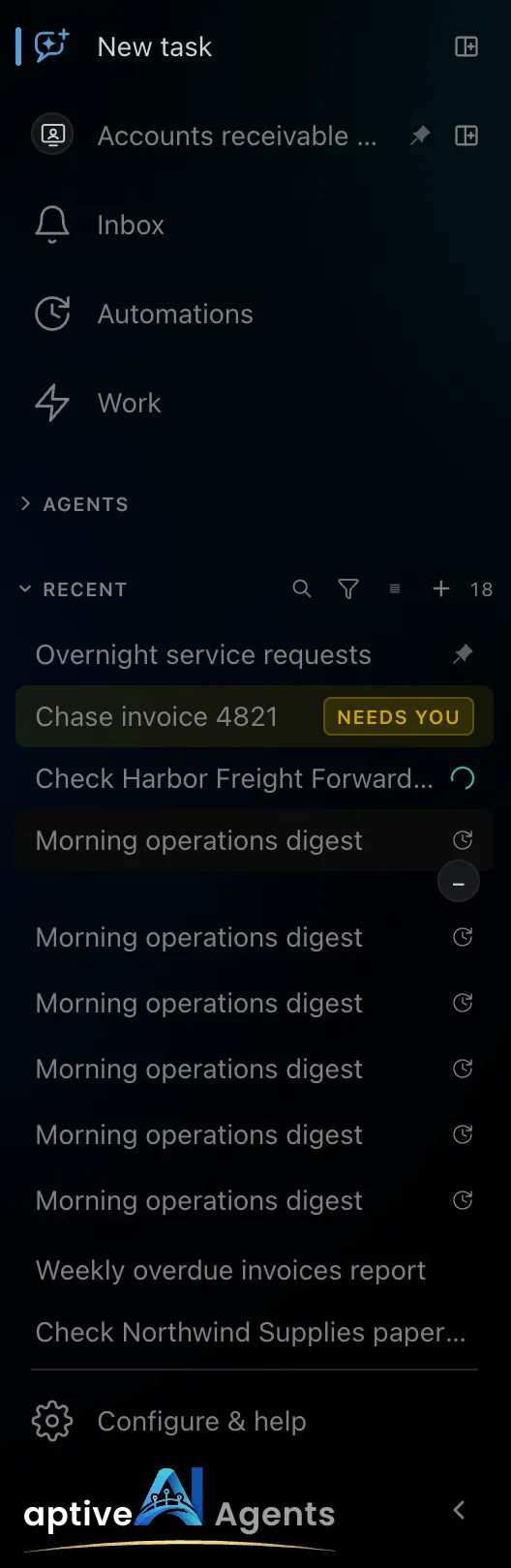
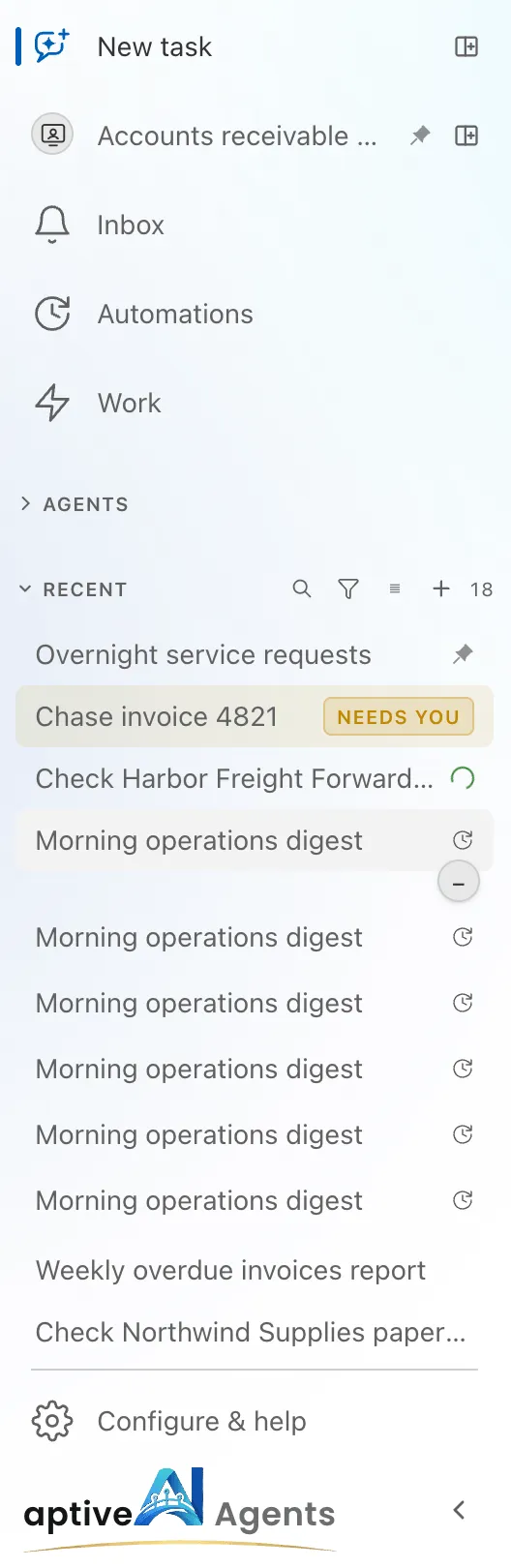
Section titled “Recent tasks”RECENT lists every task you can see — the ones you started, the ones shared with you, and the tasks of automations shared with you (who sees a task). It is ordered by what needs you:
- Pinned tasks, for everyone in the workspace.
- Tasks waiting on you — marked with an amber Needs you badge.
- Tasks running now — with a spinner at the end of the row.
- Everything else, newest first.
The task you are looking at is highlighted. A finished task shows its name and how long ago it ran; the first fifty are loaded, and N more at the bottom loads more in place. For something older, use the full Tasks list under Work.
The buttons in the section’s header:
| Button | What it does |
|---|---|
| Search (magnifier) | Filters the tasks already loaded by name, agent, result, question or status. |
| Filter tasks (funnel) | Narrows the list by Status (Needs you, Running, Finished, Failed), Started (Today or the last 7 or 30 days), Agent, and Source (All, By me, Automations, Shared with me). Each filter you set shows as a chip under the header with a Clear link, and the funnel carries a dot, so a filtered list never passes for the whole one. |
| Density | Compact (one line per task), Normal or Detailed, which adds when the task started. |
| + | Opens New task. |
Each task row has a … menu — appearing when you point at the row, always shown on a touch screen. It holds the task’s actions: pin, rename, open side by side, share, stop and delete. They are covered on the Tasks page.
Tasks that an automation started stack into one deck per automation, with a small count on it. Click the deck to open it in place and see its tasks one by one; a deck holding a single loaded task opens the automation instead.
Agents in the sidebar
Section titled “Agents in the sidebar”AGENTS shows a short list, not every agent:
- your pinned agents, first, in the order you pinned them (they also keep their row under New task);
- then up to three more agents, the ones you used most recently, and then others alphabetically;
- then All agents, which opens the Agents page.
Click the AGENTS heading to fold the section or open it. It starts open if you have a pinned agent and folded if you have none, and it remembers how you left it in this browser.
Click an agent’s name to show or hide what is under it: its latest three tasks, then N more when it has others — each click adds five more in place — and last, + New task, which starts a task with that agent. An agent with no tasks yet shows only + New task.
Every agent row has a … menu:
- Start new task — the same as + New task under the agent.
- New task in split view — a new task with this agent, beside the page you are on.
- Configure — opens the agent’s builder. Only shown if you may edit the agent.
- Clone — makes a copy of the agent. Only shown if you may clone it.
- Share… — who can see and use the agent.
- Pin / Unpin — adds the agent to, or takes it off, the top of the sidebar. Pins are yours alone; see Pinning and icons.
- Delete — only shown if you may delete the agent.
On the narrow icon-only sidebar the AGENTS and RECENT lists are not drawn; pinned agents keep their icons, and widening the sidebar brings the lists back.
Starting work with an agent
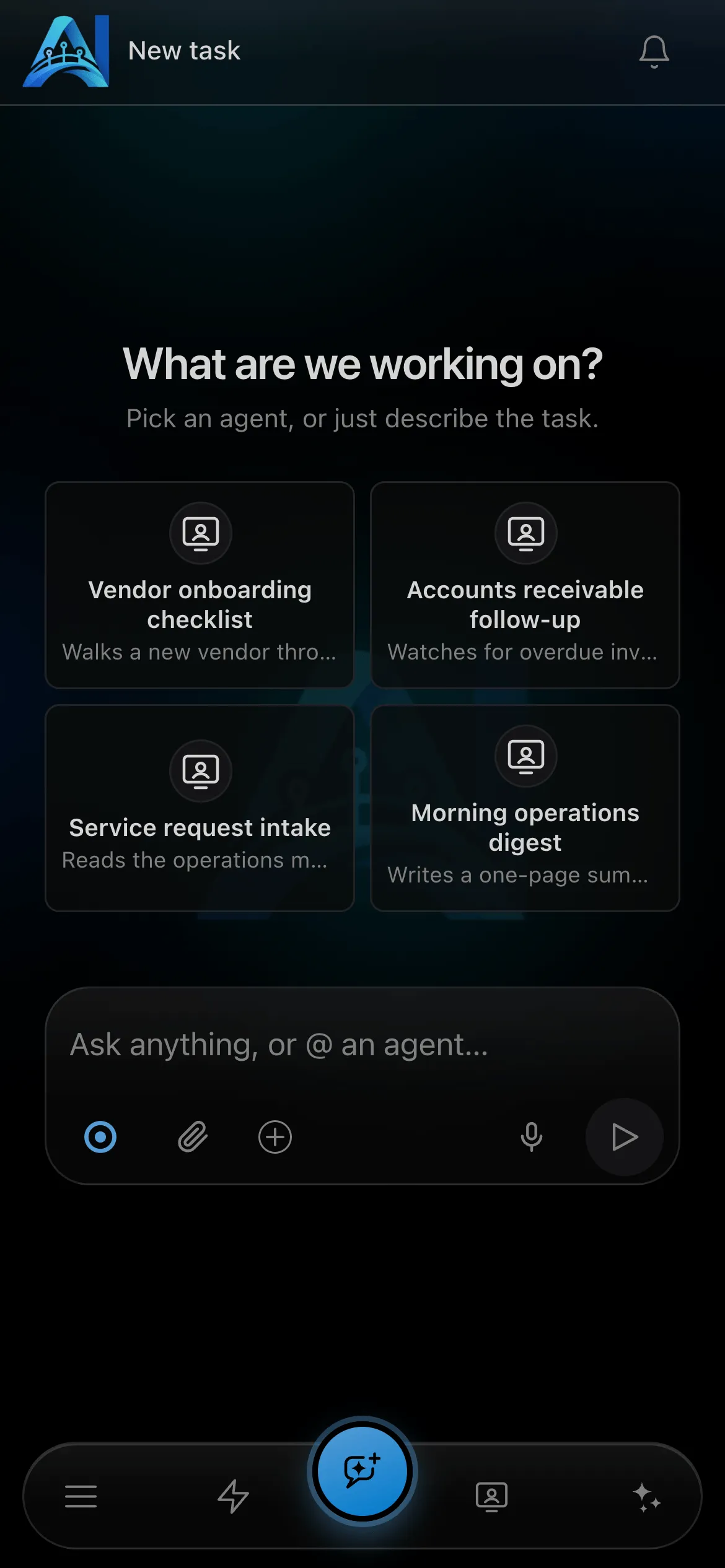
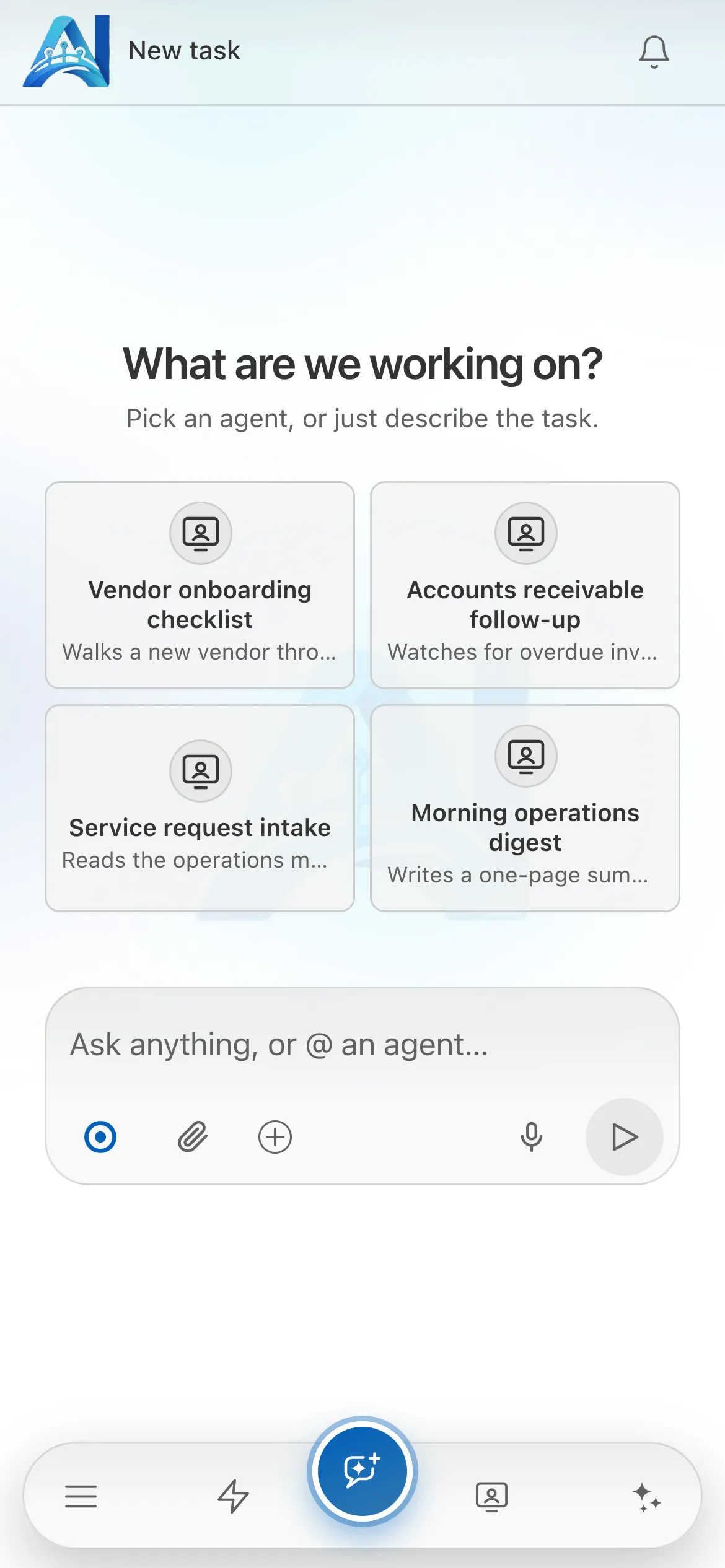
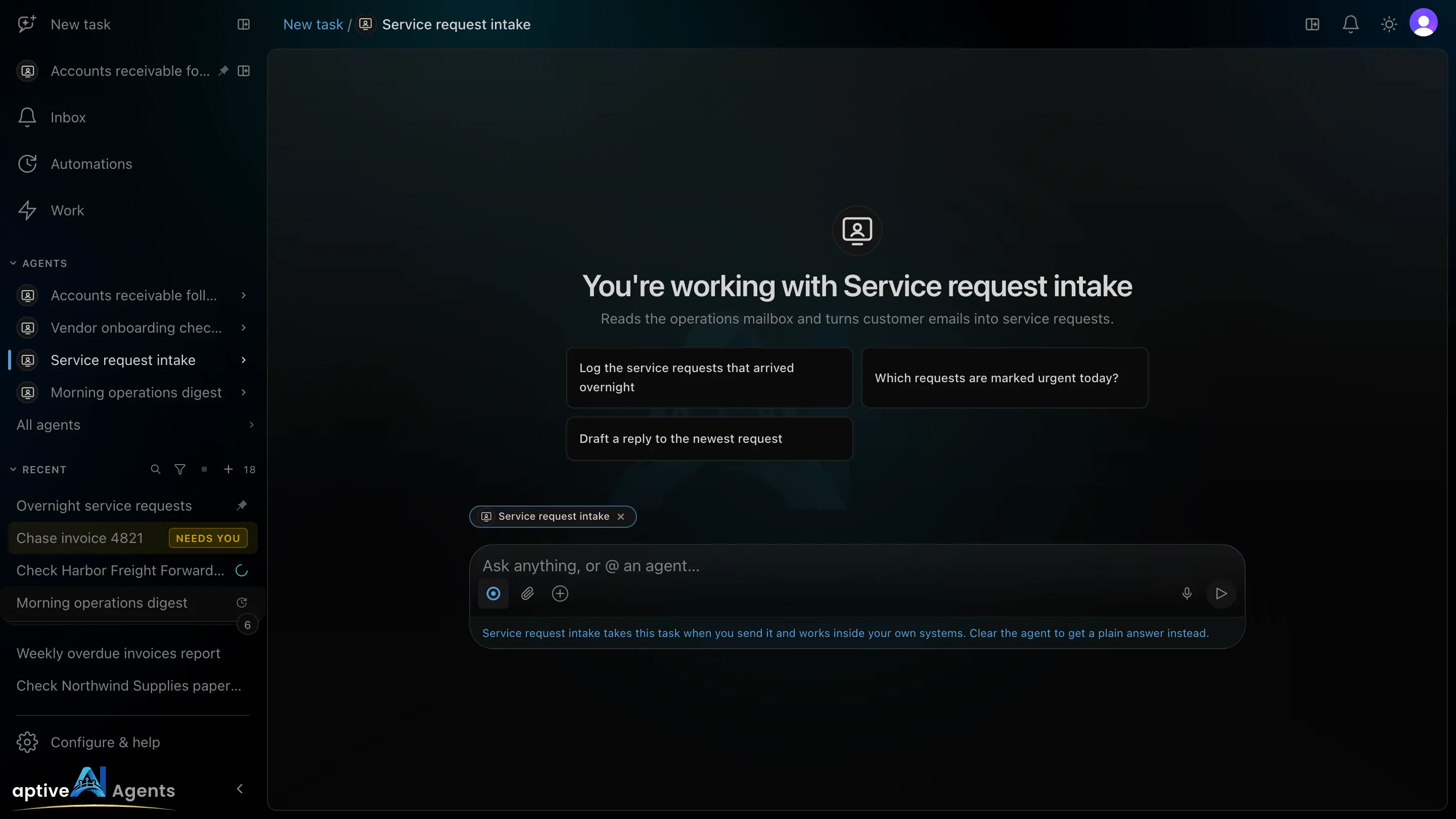
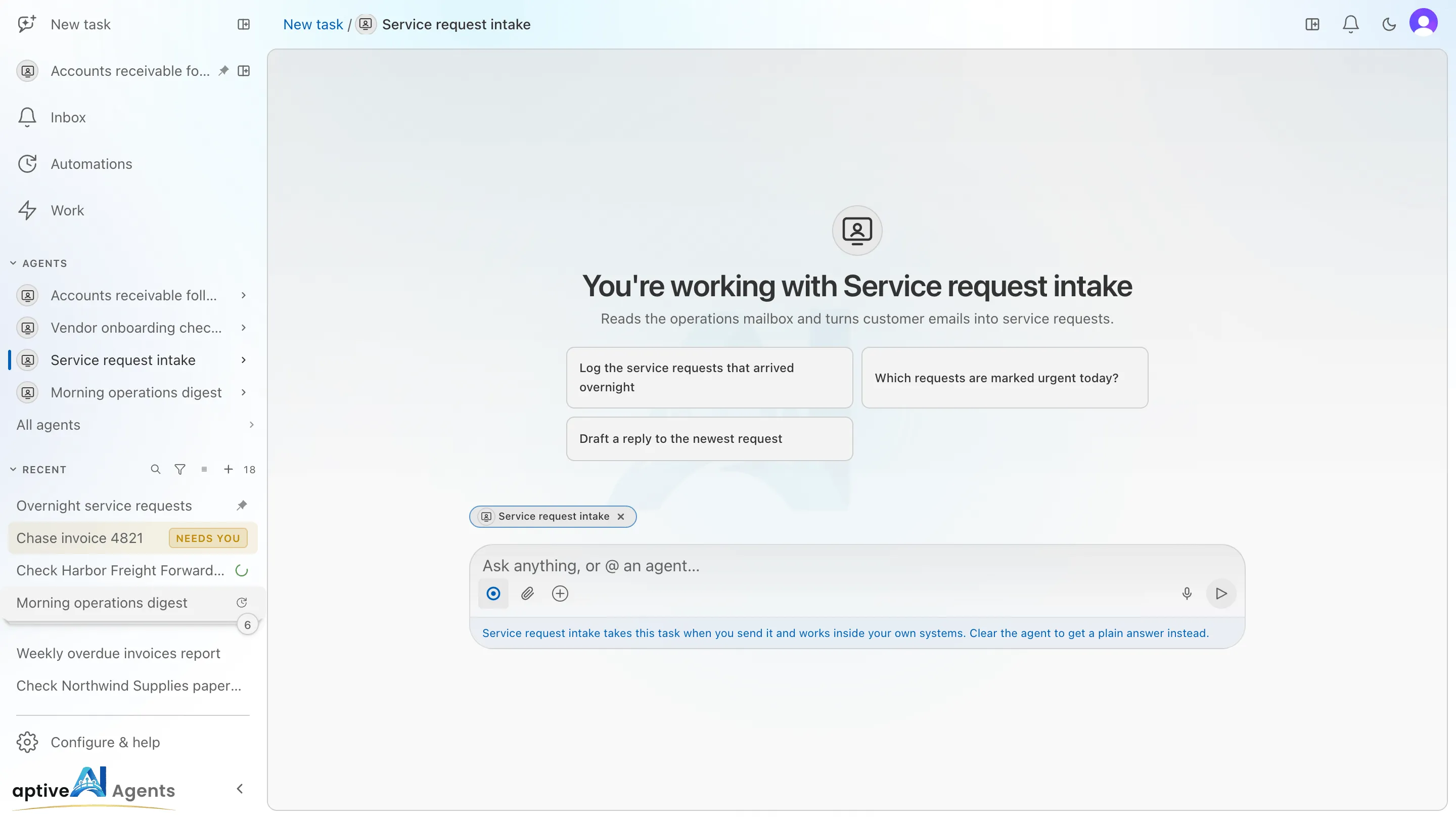
Section titled “Starting work with an agent”New task (/) asks What are we working on? Your agents are tiles
above the composer, the one you used most recently first. Click one, and the
page becomes that agent’s own screen: the headline reads You’re working with
… with the agent’s picture over it, its purpose sits under it, and the agent’s conversation
starters are ready to click. The
breadcrumb reads New task / the agent’s name, the composer shows the
agent as a chip, and whatever you send goes to it. On a phone the tiles are two
to a row, with a one-line purpose. Past ten agents a Filter agents… box
appears above them.
You can also reach the same screen from a pinned agent’s row, from an agent’s + New task in the sidebar, or from Start a task on the Agents page.
When no agent is chosen, a short hint band beside the composer explains that sending as it is gets an answer, and that choosing an agent has the work done inside your own systems. Close it and it stays closed in this browser; the icon that opened it brings it back, and the next close is remembered again.
The address is /?agent=<id>, so the page can be bookmarked or shared with a
colleague who can see the same agent. Clicking a conversation starter sends its
message straight away; to write your own, type in the composer. Clear the chip
to get a plain answer with no agent instead. Tasks
covers what happens next.
The Work page
Section titled “The Work page”Work opens a page of cards, one per place you can go. It holds what your agents do and when: Tasks, Automations and the Inbox, plus Productivity for owners and admins.
Configure & help
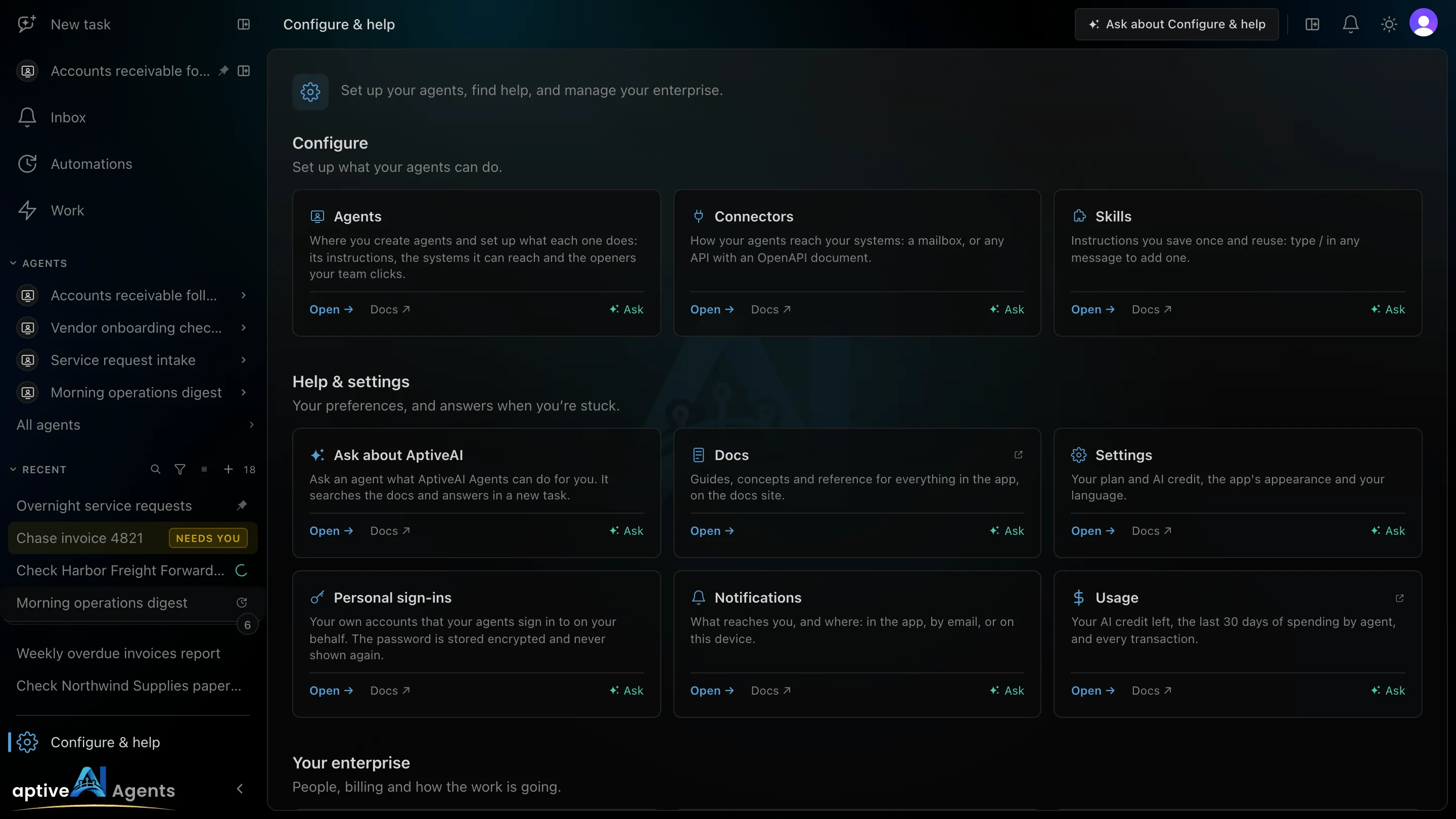
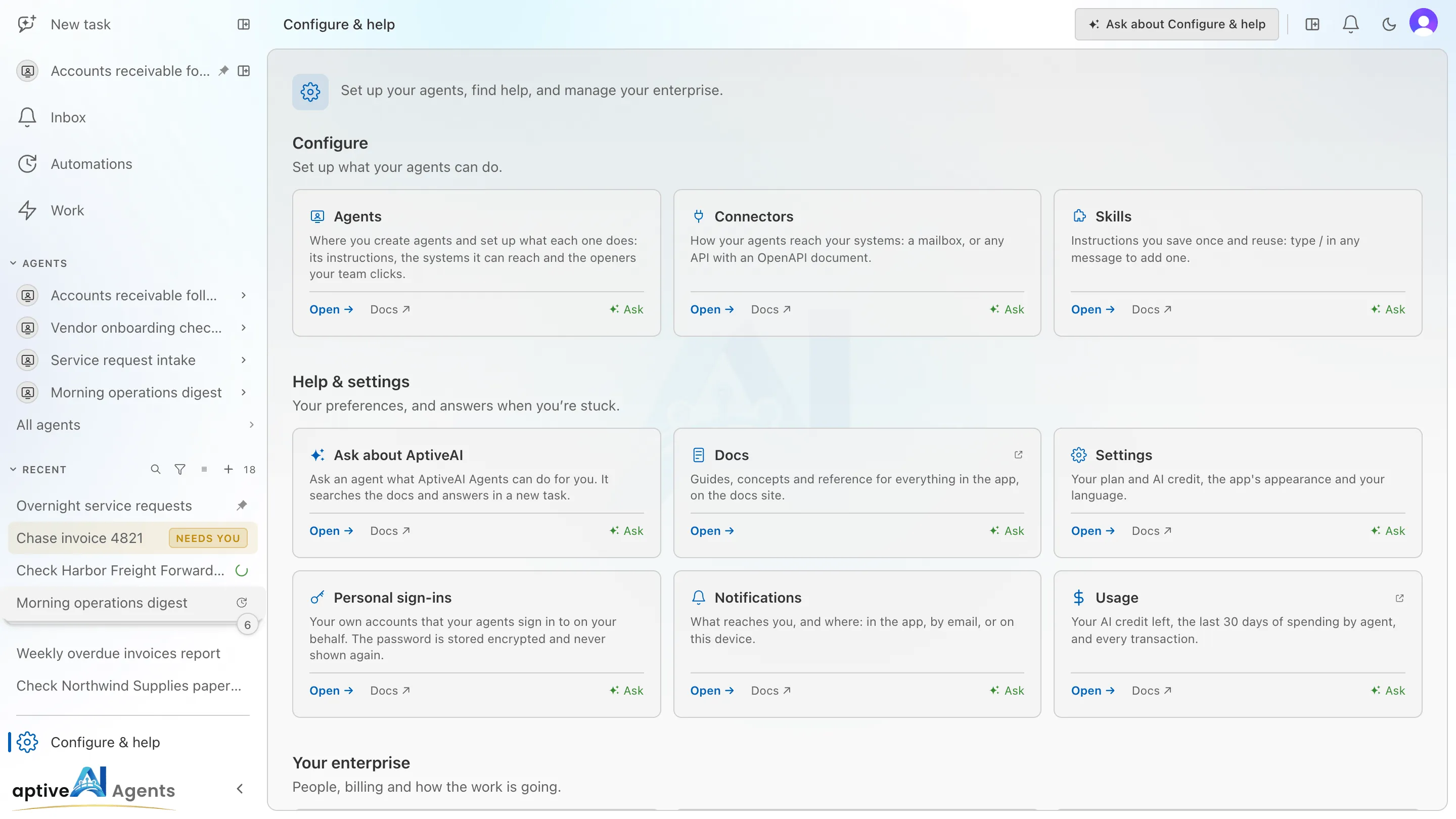
Section titled “Configure & help”Configure & help is one page, in three groups of cards. Opening
/help takes you to the same page.
| Group | Cards | Shown to |
|---|---|---|
| Configure | Agents, Connectors, Skills | Everyone |
| Help & settings | Ask about AptiveAI, Docs, Settings, Personal sign-ins, Notifications, Usage | Everyone |
| Your enterprise | Admin, Activity, Productivity | Owners and admins; Activity needs billing access |
| Card | What it does |
|---|---|
| Ask about AptiveAI | Starts a new task that asks what AptiveAI Agents can help you with, in your language. It searches this documentation and answers straight away. |
| Docs | Opens this documentation in a new tab. |
| Settings | Settings: your plan and AI credit, the app’s appearance and your language. |
| Personal sign-ins | The Personal sign-ins section of Settings. |
| Notifications | The Notifications section of Settings. |
| Usage | Your own AI usage, in the portal. Every person sees their own; owners also see their enterprise’s. |
| Admin | The admin area, in the portal. |
| Activity | What your enterprise’s agents used, in the portal — see Activity. |
| Productivity | Goals met and work time, in the portal — see Productivity. |
Each card has up to three links:
| Link | What it does |
|---|---|
| Open | Goes to the page. Admin, Usage, Activity and Productivity open in the portal, and Docs opens this documentation; those cards are marked with an outside-link icon. |
| Docs ↗ | Opens the page of this documentation that explains it. |
| Ask | Starts a new task with a prepared question — Explain Tasks: search the docs, summarise it, and link the pages. — and opens it, so the answer starts arriving straight away. If your workspace cannot start tasks right now, the question is left typed in New task instead. |
Ask about Work and Ask about Configure & help, in the page header, do the same for the whole page: the question asks what you can do under that section. An Ask task has no agent, so it answers from this documentation — no computer, and no access to your systems.
Where to find things
Section titled “Where to find things”| Looking for | Where it is |
|---|---|
| A task you or a colleague started | RECENT in the sidebar, or Work → Tasks |
| An agent’s tasks | Under the agent in AGENTS, with N more for older ones; or the agent’s Tasks button on the Agents page |
| An automation | Automations, or Work → Automations |
| A question waiting on you | Inbox, or the Needs you rows at the top of RECENT |
| Every agent, or a new one | All agents at the end of the AGENTS list, or Configure & help → Agents |
| Your own sign-ins to websites an agent opens | Configure & help → Personal sign-ins — the Personal sign-ins section of Settings |
| Which notifications reach you, and how | Configure & help → Notifications — the Notifications section of Settings |
| Your plan, AI credit, theme | Configure & help → Settings |
| Your own usage | Configure & help → Usage |
| Language and your account | The account menu, under your avatar in the top-right corner |
| Members, invitations and billing | Configure & help → Admin, for owners and admins — see The admin area |
| This documentation, or an answer from it | Configure & help → Docs, or Ask about AptiveAI |
The Agents page lists every agent you can see, as tiles or a table, with each one’s last task and next run. Start a task opens New task with that agent; New agent opens the builder.
On a phone
Section titled “On a phone”On a phone the sidebar becomes a bar at the bottom of the screen: Menu, Work, New task in the middle, Agents and Tasks. Menu opens the full sidebar as a side panel — the same rows, with AGENTS and RECENT in it, the same … menus, and Configure & help last, below a line. This is where RECENT lives on a phone; there is no separate tasks panel. Rows are taller for a finger, the … menus are always visible and open as a sheet, and there is no density button. Agents in the bar opens the Agents page and Tasks the Tasks list. Inbox is in Menu, and the bell in the header shows your unread count.