
Browser workflows
Many of the systems your team works in have no API: a supplier portal, an older records system, a site you sign in to and click through. A browser workflow teaches your agents one of those sites once. It is a connector whose tools are not API calls but written procedures — each one a skill with its instructions and scripts — that the agent follows in its browser, on its own computer.
Two words are used throughout, and they are different things:
| Word | What it is | Where you meet it |
|---|---|---|
| Browser workflow | What someone builds once: its details, its variables and its tools | The Browser workflow tile in Add a connector, and the workflow’s own page |
| Connector | What a company creates from a browser workflow, filling in its own values — then shares and grants like any connector | The Connectors list, the agent builder, a task’s Add a connector |
One browser workflow can sit behind many connectors. The person who builds it writes the steps; each company that uses it only says which site address (or other value) is theirs.
Organizing a browser workflow
Section titled “Organizing a browser workflow”A browser workflow works best when it mirrors how people use the site:
- One browser workflow per site. Everything an agent does on one website — one sign-in, one set of address settings — belongs in one workflow. Each company that uses the site makes one connector from it and fills in its addresses once. Two workflows for the same site mean two sets of settings to keep in step, and two connectors to grant.
- Inside it, one tool per area of work. Group the jobs the way people talk about them — Invoices, Loads, Customers — rather than one tool per click or one tool for everything. An agent loads only the tool a task needs, so a focused tool keeps its instructions short and the choice obvious.
- A handful of site calls per tool. Each tool
carries the calls for its area — for Invoices, perhaps
list_invoices,get_invoiceandmark_invoice_paid. A tool holds up to 20. - Instructions that say when to use each call. The tool’s instructions are what the agent reads. Name each call, say which question or step it is for, and what to do when it is refused: To find the invoices of a date range, call “list_invoices” with the range; a long answer comes back as a file — count or total it with a script that reads that file. To mark invoices paid, call “mark_invoice_paid” once with every invoice (up to 25 per call). If a call is refused or fails, do the step on the page.
- Addresses are variables, never text in a tool. The site’s address, and each separate address its pages fetch data from, is a Web address variable; anything else that differs between companies — a company code, a region — is a Text variable.
Building a browser workflow
Section titled “Building a browser workflow”Open Connectors. Under Add a connector, click the Browser workflow tile — Teach your agents a website once. Each tool is a skill they run on their own computer. It opens New browser workflow. The tile sits in the same grid as the other connectors, just before Custom MCP server and HTTP API; typing browser in the search box finds it at once. There is no menu or extra step before it: the tile is the way in.
The page has the same shape as an agent’s builder. The header carries the actions — Create browser workflow on a new page; Discard, Save and Delete browser workflow on a saved one — and an Unsaved chip shows while anything on the page is not saved. A workflow has no draft or active state: it is there until someone deletes it. A new page keeps everything you add — details, icon, variables, tools and their scripts — until you press Create browser workflow, which saves it in one go; if the create is refused, nothing you entered is lost.
| Section | What it holds |
|---|---|
| Details | The icon, Name and Description, as every company will see them |
| Variables | Values each company fills in when it creates its connector — usually the site address. Give each a Label, a Key, a Kind (Text or Web address), whether it is Required, and optionally an Example |
| Tools | What your agents can do on the site, one tool per job |
| Connectors made from it | The connectors created from this workflow that you can see. Open one to change it on the Connectors page |
Variables
Section titled “Variables”Anything that differs from one company to the next belongs in a variable, not
in a tool. Name it in braces inside a tool’s instructions — {site_url} — and
each connector’s own value is filled in when the agent loads the tool. A tool
written this way works for every company without being copied. A required
variable with no value stops the tool from loading, so the agent never reads a
blank.
A variable has one of two kinds:
| Kind | Use it for | What is checked |
|---|---|---|
| Web address | The site the agent opens (site_url), and each separate address its pages fetch data from (api_url, billing_url) | A connector’s value must be an http:// or https:// address |
| Text | Anything else: a company code, a region, a department | Nothing beyond Required |
A site call can start its
address with a Web address variable — {site_url}/api/tickets/{id}. That
value must then be the site’s address alone, such as
https://portal.example.com: no path, query or user name. When the site lives
under a path, the path goes in the call. Only Web address variables count
as the workflow’s addresses when a call
borrows sign-in headers across them.
Add tool opens the tool form beside the page — the same form as a workspace skill:
| Field | What it holds |
|---|---|
| Name | What the tool is called |
| When to use it | What the agent reads to decide whether to load it |
| Instructions | The steps the agent follows. Name a variable in braces, like {site_url} |
| Scripts | Code the steps run on the agent’s computer, the same way every time — added with Add script, kept in folders |
| History | Every save is a version. See what changed, or Restore an earlier one |
A tool’s row in the Tools list has Switch off and Switch on, and Remove. A tool that is off is offered to no task from its next one; removing a tool never disturbs a task that already loaded it. A connector can be made from a workflow only while at least one of its tools is switched on; until then only the people who can change it see its tile, and its panel says No tools yet, so nothing can be connected from it. Edit it to add one.
A browser workflow’s tools are theirs alone: they do not appear on the
Skills page or in the / menu, and an agent cannot change one from a task.
A tool can also carry site calls — the site’s own
requests, sent from the agent’s signed-in browser instead of clicking through
the page. They are files under calls/ in the tool’s Scripts, and the
tool’s instructions say when to use each one. A call’s address can start with
one of the workflow’s variables, such as {site_url}, so it works for every
company’s site.
Generate with agent
Section titled “Generate with agent”You do not have to write the steps by hand. Generate with agent opens the Agent tab: Tell the agent which website to work with. It works in a browser with you and proposes the tools when you are ready. Explore the site together, show it what to do with Record if you like, then ask it to propose the tools. The agent can also turn steps into site calls:
- It finds the request. While you use the site together, it sees the requests the site’s pages send — their addresses, field names, header names and the shape of each answer, not the values — and takes only one the page itself made. A value the page never shows it reads from a recording of the step, with credentials hidden. For a change, it reads the rules of the site’s own form without submitting it.
- It checks the call against the site before proposing it: the page must
have made that request in the session, a read runs once for real, and a
change is built and shown but not sent — unless you name a record that is
safe to change, and approve that one test change on a card. When the check
is not sure a search
POSTonly reads, it asks Send this once for real? first. - The check is of the exact content. A call changed afterwards, on the card or by the agent, is checked again before it can be saved.
How that works, and the call file field by field, is in Site calls.
Nothing is saved until you approve. The agent’s proposal arrives as a card listing each tool — new ones marked, existing ones left as they are — and Approve saves everything on it to the workflow at once; you can edit a tool on the card first. Every company that uses the workflow gets the new tools from its next task.
- It is a session on a computer. It spends AI credit like any task and follows the same rules as one when an allowance is used up.
- One session per workflow. A reload reattaches to it. If someone else started it you can follow along, but they work in it and end it.
- It has a browser of its own. The session works in a browser kept for this workflow, not in the one your own tasks use.
- Signing in stays out of the workflow. When the site needs a login, the agent uses a sign-in already stored for you (Personal sign-ins); no password is written into a tool. See Signing in to the site.
- New conversation ends the session and keeps it as a task, which you can open again from Session history. Tools you approved stay saved; a proposal you did not approve does not.
The icon
Section titled “The icon”Choose the icon in Details by uploading one, taking one From a website (the icon the site shows in a browser tab) or Generate. If you set none, one is generated once, automatically, the first time the workflow has what it needs.
Using a browser workflow
Section titled “Using a browser workflow”Once a workflow has a tool switched on, anyone who can see it creates a connector from it: open Connectors, click its tile in Add a connector, and fill in:
- Name — optional; left blank, the connector takes the workflow’s name.
- Its variables — for example Site address. Required ones are marked.
- Who can use it — the same share box as any connector.
- Workspace — only if you are in more than one workspace; your main one is chosen unless you pick another.
Then Connect. The tile reads Browser workflow · Built by your team or, when AptiveAI published it to your company, Browser workflow · From AptiveAI. On the workflow’s own page, Create a connector from it on the Details row does the same.
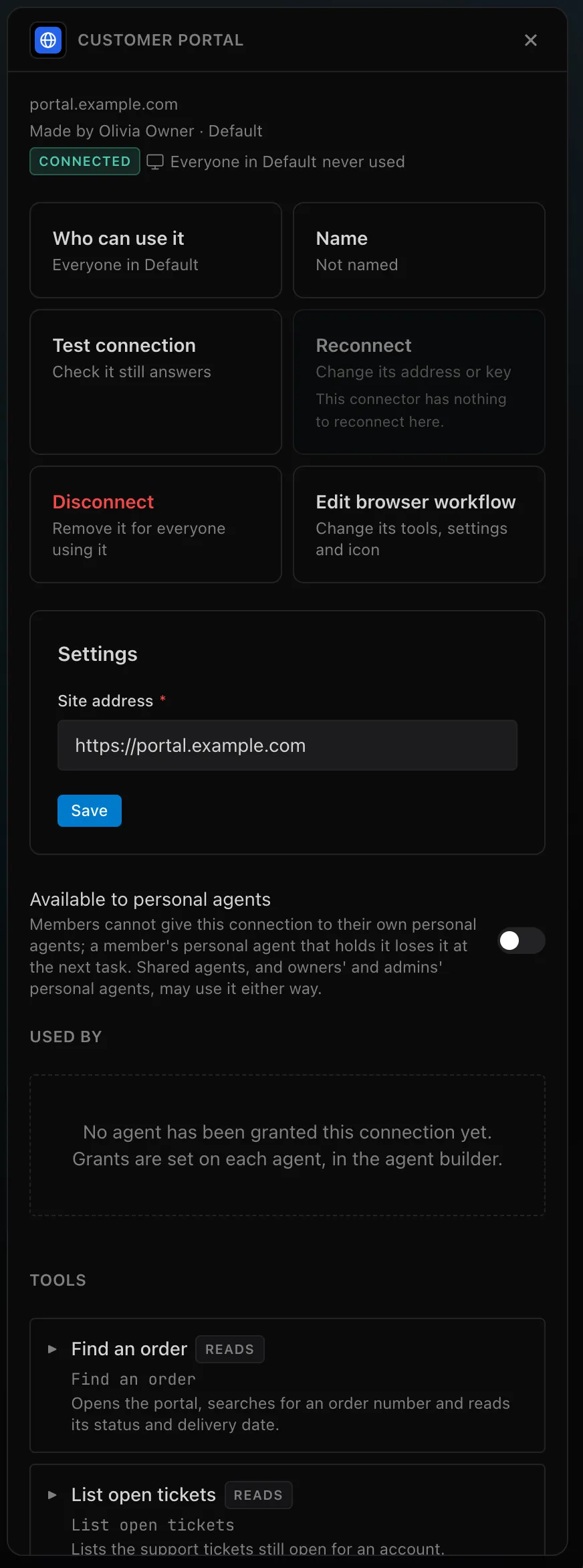
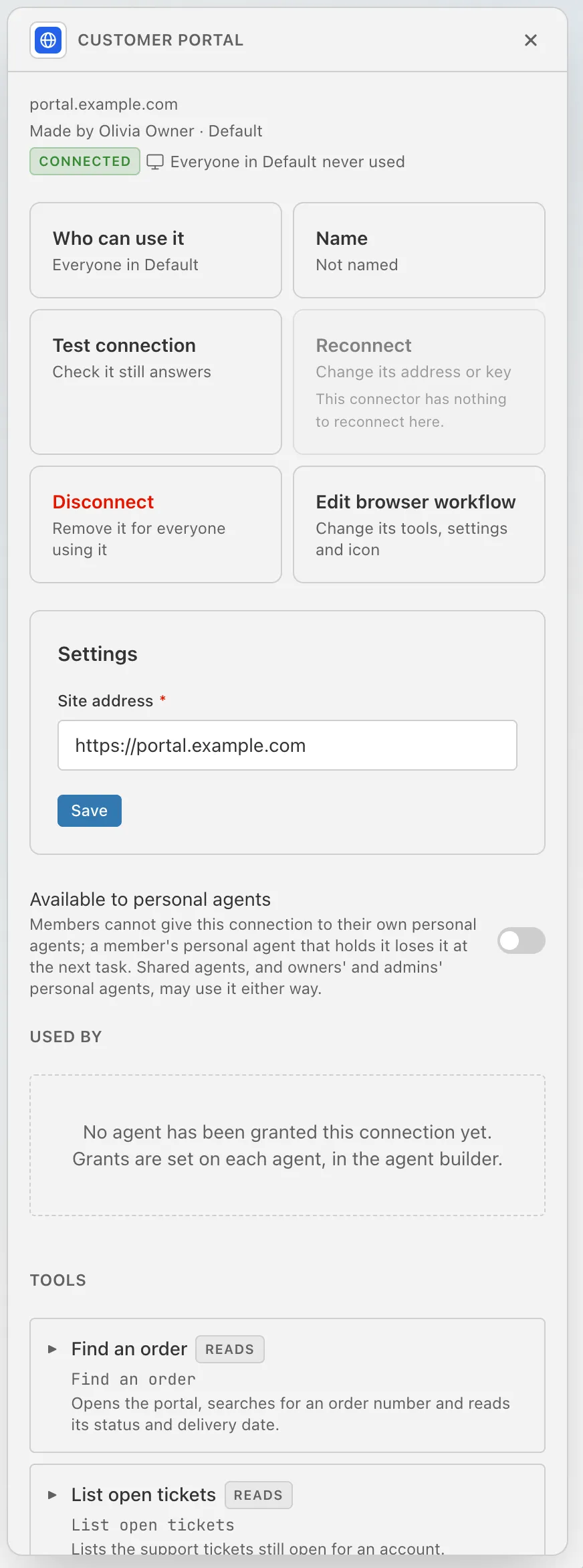
On the connector’s panel:
| Settings | The variables’ values. Saving them is checked: a missing required value or a web address that is not http:// or https:// is refused |
| Tools | Its tools, the ones its workflow offers |
| Test connection | Checks that the workflow is still there (not deleted) and available to your company, with a tool on and every required value filled in. It does not open the site |
| Edit browser workflow | Opens the workflow — only for whoever may change it |
| Disconnect | Deletes this connector and its settings. The workflow is not changed |
If a workflow gains a required variable, every connector made from it shows an error naming the missing value until its owner fills it in, and tasks get none of its tools meanwhile.
What its calls read. A call that reads a lot — a month of invoices, thousands of rows — keeps its answer as a file in the task’s files, under Agent’s artifacts. The agent counts and totals it with a script that reads every row, and you can open and download it for an hour after it was fetched. See Long answers.
Signing in to the site
Section titled “Signing in to the site”A browser workflow never holds a password. When a task reaches the site’s
sign-in page, the agent signs in with a sign-in already stored — one of the
personal sign-ins of the person who started the
task, or one of the agent’s own sign-ins — and the
tool’s instructions only say so: Sign in to {site_url} with the stored
sign-in.
- One matching sign-in is used without asking, the first time in a task. With several that could match, or for a second attempt on the same site, the agent asks. On an automation a failed sign-in is not tried again, so the account is not locked.
- Sending it needs no approval card when the agent has just filled both the user name and the password of that sign-in into one sign-in form. A form that looks like a signature or a payment, a retry after a failed sign-in, and a sign-in split over two pages (user name, Next, then the password) still ask. The detail is in Sending the sign-in.
- A one-time code is never stored. When the site asks for one, the agent asks you.
- Calls follow the page. Once the page is signed in, the tool’s site calls borrow the sign-in headers it sends; see Sites whose data lives on another address.
Who can do what
Section titled “Who can do what”| Action | Who |
|---|---|
| See a workflow’s tile and create a connector from it | Anyone in a company that built it or that AptiveAI published it to, while it has a tool switched on and is not deleted |
| Change a browser workflow | The person who built it, or AptiveAI. Not another admin, and not the owner of the workspace; they see it read-only: You can use this browser workflow, but you cannot change it. |
| Delete or recover it | Whoever may change it |
| Publish it to other companies, or remove a deleted one for good before its 30 days are up | AptiveAI |
| Use and share a connector made from it | Its creator, and whoever it is shared with, as any connector |
| Change its settings, test or disconnect it | Its creator, and others who can edit it |
A workflow with no tool switched on is visible only to the people who can change it.
Deleting and recovering
Section titled “Deleting and recovering”Whoever may change a workflow deletes it with Delete browser workflow in the header of its page, or with Delete on its tile’s panel in Add a connector, where Edit sits beside Connect too. The question says how many connectors are made from it.
- A deleted workflow stops working at once. It leaves Add a connector, nobody can make a connector from it, an open session on it ends, and every connector made from it shows No tools: the browser workflow this connector was made from is no longer available here. Its tools are offered to no task.
- It is kept for 30 days. To find it, add Deleted in the search box of Add a connector (Only, or With live); its tile is dimmed and says when it is removed. It is read-only until someone who may change it presses Recover, which brings it back with every connector made from it.
- After 30 days it is removed for good, with its tools, their scripts and history, its grants to agents and its publications. The connectors made from it are not deleted — they belong to the people who made them — but they stop working for good.