
Tasks
A task is one piece of work: “reconcile this week’s supplier invoices”, “find out why order 4471 has not shipped”. You start it with a message, an agent works on it — on a computer of its own, with the connectors it has been granted — and the task keeps everything that happened: the conversation, every step the agent took, the questions it asked, the files it wrote and what it cost.
A task can also be started by an automation. Either way,
it lives at its own page, /tasks/<id>, and in the Tasks list.
Starting a task
Section titled “Starting a task”New task, the first row of the sidebar, is where work starts.
-
Pick an agent. Click one under Your agents, or type
@or/in the composer and choose it. The page becomes You’re working with …, with the agent’s purpose and its conversation starters. A pinned agent in the sidebar opens this page directly. -
Say what you need. Type your message, or click a conversation starter to send its message straight away. Type
/to add a skill. Attach files with Attach a file or by dropping them on the page — up to 20 files of 25 MB each; images can be marked up with Annotate first. See Files. -
Send. The task starts and you land on its page.
Sending with no agent gets you a plain answer instead — no computer and no access to your systems. That task is shown as Answer directly, and you can still hand it to an agent later with Choose an agent.
The task page
Section titled “The task page”The transcript
Section titled “The transcript”The conversation, top to bottom: your messages and their attachments, the agent’s replies, and each step it took in plain words — Opening …, Clicking …, Titled the task: …. Consecutive steps fold into one line such as 12 steps; open the fold to read them. A fold says on its closed line when something didn’t work or is still working….
An agent can set part of a reply apart as a coloured callout: Caution, in red, for a problem that needs you to act, and Warning, Important, Tip and Note for the rest.
Steering it
Section titled “Steering it”While the agent works, the composer stays open: Steer this task, or @ another
agent to help…. A message you send reaches the agent at its next step. Type
@ to Bring in an agent to help; on a task with no agent, Choose an
agent hands the whole task to one.
To stop, use the button in the send slot — Interrupt this task pauses it where it is (Send another message to carry on). From the keyboard, Esc then Enter interrupts. End task in the header stops it for good and releases its computer; anything it already did in your systems stays done.
A task that has completed, failed, been stopped or paused picks up again when you send it another message.
A finished task’s page keeps listening. When something wakes it — a message from another task, or a message you sent from another tab or device — the page fills in by itself, without a reload.
Questions and approvals
Section titled “Questions and approvals”When the agent needs you, the task stops and a card takes the composer’s place.
- A question — the agent asks something only you can answer, sometimes with choices. Answer it and the task carries on.
- An approval — the agent is about to do something that cannot be undone: send a message, submit a form, delete, spend money, or write to one of your systems. The card says exactly what, and you choose:
| Button | Effect |
|---|---|
| Approve | Run this action once, then carry on |
| Approve all | Run this and stop asking for the rest of this task |
| Decline | Skip this action and tell the agent why — there is a box for what to do instead |
How much a task may do before it asks is its approval level, set in Details → Approvals. See Approvals.
A task waiting on you shows as Needs you, and reaches you in the Inbox, where you can answer it without opening the task.
When the agent reaches its step limit
Section titled “When the agent reaches its step limit”An agent takes a limited number of steps on one message without checking in. If it reaches that and has not finished, the task no longer ends there: a Step limit card asks Carry on for up to N more steps? Its work so far is kept, and you choose:
| Button | Effect |
|---|---|
| Continue | The agent carries on from where it stopped, for up to that many more steps |
| Stop here | The agent stops and tells you how far it got |
There is also a box, Or tell the agent what to do instead, for a different instruction.
When a connector’s data comes back incomplete
Section titled “When a connector’s data comes back incomplete”Sometimes a connector — or a site call — answers with only part of what the agent asked for. The transcript then says so: A result from … did not reach the agent in full, so it worked from part of it. Check any list, count or total it reports from that step.
While data like that is unresolved, the agent is stopped from sending anything on the strength of it. You see Nothing was sent: the agent tried to send while data from an earlier step was incomplete, and it was stopped. Reply to tell it to get the rest first, or to go ahead with what it has. A file the agent made from incomplete data carries a note too, so you check it before you share it.
What an agent can do with your tasks
Section titled “What an agent can do with your tasks”In a conversation — with an agent, or with no agent — you can ask where a task stands, have its link sent, start another task, or pass a message to one. Say task, session, chat or conversation: the agent takes them all to mean a task.
Where a task stands, and its link
Section titled “Where a task stands, and its link”Ask “what’s the status of this task?”, “what is this task’s id?” or “send me the link to the invoices task”. The agent looks the task up — it does not answer from memory — and tells you its name, its status in plain words (finished, waiting for a person to answer a question, waiting to start: its agent is busy with other tasks), its agent, who started it, when it started and was last active, and its link. The step line reads Checking this task’s details or Looking up the task ….
- This task, or another of your own. The agent can look up the task you are in, or another task you started, by its name or part of it. A task someone else started is not one of yours, even when it is shared with you, and the agent answers that no task of yours matches. If a name fits several of your tasks, it asks which one you mean.
- “List my tasks” answers carry each task’s link too.
- On a task an automation started, the agent can always describe that task. When nobody started it, that task is the only one it can look up.
The agent can also put the link in an email when you ask — “email Dana the link to this task and say where it stands” — through AptiveAI Messaging or a connector that sends mail, with that send’s own approval. It copies the link from the lookup; it never writes one itself.
Starting another task
Section titled “Starting another task”Ask for a separate piece of work — “start a task with the Billing agent to chase the overdue invoices” — and the agent prepares a new task: the agent to run it (this task’s agent, another one, or none, for a plain conversation), its first message and, if it chooses, a name. Nothing starts until you agree: a card shows the agent and the first message and asks Start this task?, with Approve, Approve all and Decline, like any approval. Approve all covers new tasks too, for the rest of this task. The step line reads Starting a new task with …, and once it starts the agent tells you which task it started, with its link.
- It is your task. The new task is started as you, in this workspace, and appears in Recent tasks and the Tasks list like one you started yourself.
- It starts fresh. The new task does not see this conversation, so the agent writes its first message to stand on its own: what to do, the facts it needs, whom to tell. This task does not wait for it, and its answer does not come back here. To check on it or pass it something later, ask the agent to look it up or send it a message.
- The same rules as starting one yourself. It is refused before any card if you may not start tasks right now (see Paid access), may not use that agent, or it is outside the hours the agent may act (Guardrails). The agent tells you why. If the agent is already working on as many tasks as it can, the new task waits and starts on its own when one of them finishes.
- At most five at a time. One message of yours can lead to at most five new tasks.
- Not from an automation. A task an automation started cannot start tasks.
Tasks can message each other
Section titled “Tasks can message each other”An agent can look at your other tasks and send a message to one of them — “tell the invoices task to check March as well”. Ask it by the other task’s name; it shows a step line as it goes (Looking at your tasks, Sending a message to …, with (reply expected) when it wants an answer back). By default it looks at tasks that are running, waiting or paused, and those that finished in the last seven days; it can look further back when you ask.
- Only your own tasks. An agent can message the tasks you started, never someone else’s — not even one shared with you with Can edit.
- The sender does not wait. When it wants an answer, the other task’s reply comes back here on its own, as a new message. If the other task could not answer — it failed, was stopped, or is waiting on a question from you — a line says so instead.
- The receiving task treats it like a message you typed. It carries on if it was running, and picks up again if it had finished. If it is waiting on a question or approval from you, the message waits behind the card; your answer still comes first.
- It says where it came from. Under the message, a From task chip names the task that sent it and opens that task; an answer that comes back carries Reply from task. If the sender no longer exists, the chip reads a task that no longer exists.
- It asks when several tasks match. If a name fits more than one task, the agent sends nothing and asks you which one you mean.
- It does not run away. A back-and-forth between tasks stops after a few exchanges, and the agent asks you before going on. One message of yours can lead to at most five sends, of up to 4,000 characters each. It never needs an approval card to send, but the receiving task’s own approvals still apply.
- Only while you belong to its workspace. A message to a task in a workspace you have since left is not delivered.
- A task an automation started can receive messages, but cannot send them.
The live view
Section titled “The live view”The live view is the agent’s computer, live: its real screen, as the agent clicks and types. It opens by itself in the side panel the first time the agent uses the screen, and Full screen gives it the whole page.
You can use the computer yourself through it — type a one-time code, finish a sign-in, show the agent where something is — and a composer over the screen (Show chat / Hide chat) lets you talk to the agent while you watch. Show what the agent is doing opens a commentary of its steps as it goes.
The live view is yours to open and close; the agent cannot open or close it. When the agent tells you what its computer is doing, it has just checked rather than assumed. After a task ends, its computer is kept for three minutes — so the next task starts faster and the screen is still there — and then released.
The side panel
Section titled “The side panel”Three tabs beside the transcript, which can sit to the right or below (Layout), be resized or be collapsed:
- Live view — see above.
- Details — a Summary once there is one; the Computers the task used; the Tools it had, and any granted tools it could not use; and Task details: status, the instruction, the agent, duration, what it cost (such as $0.004 AI · 3 min on a computer) and, under More details, the model and when it started and finished. A task an automation started also names the Automation here.
- Documents — every file in the task: the ones attached to it, the ones a connector returned and the ones the agent made. See Files.
A task an automation started shows that automation as a small icon in its header, next to the title. Select the icon, or the automation’s name in Details, to open the automations page with that automation scrolled into view and highlighted.
A task is named from its first message until, after its first reply, it gets a short title of its own. An agent can also title a task when its instructions say how. Click the title to rename it (on a phone, use Rename in the header’s … menu); a name a person types always wins, and clearing it brings the automatic title back.
The task menu
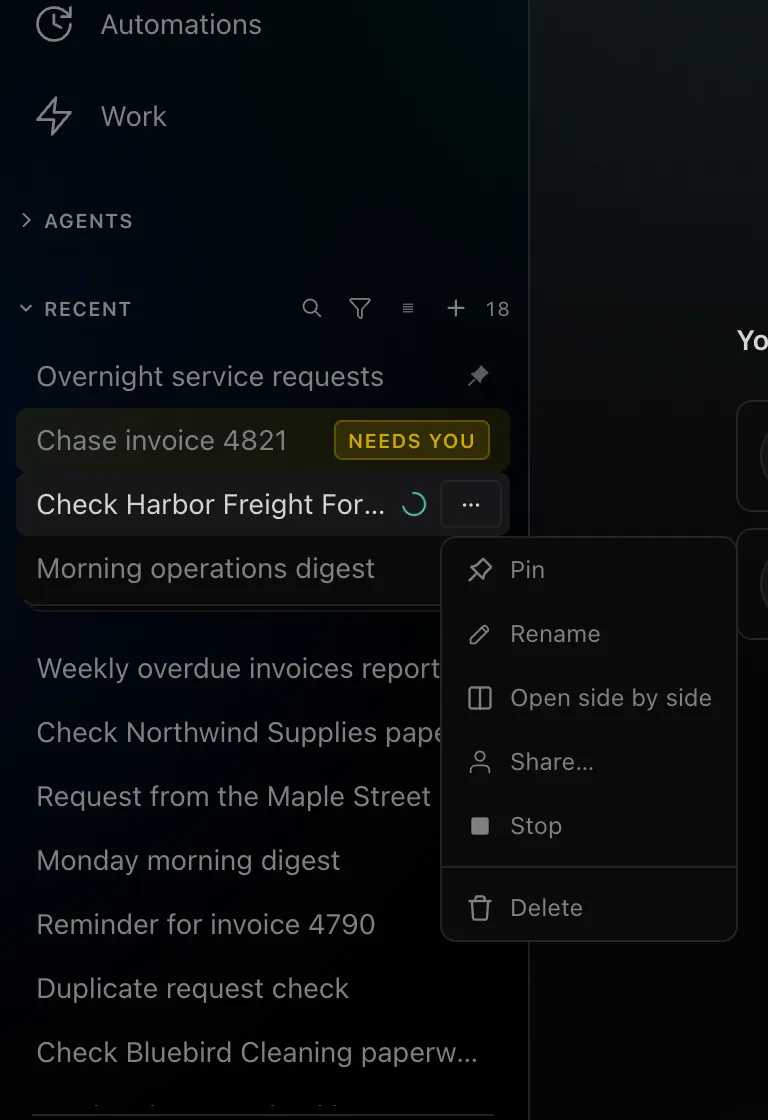
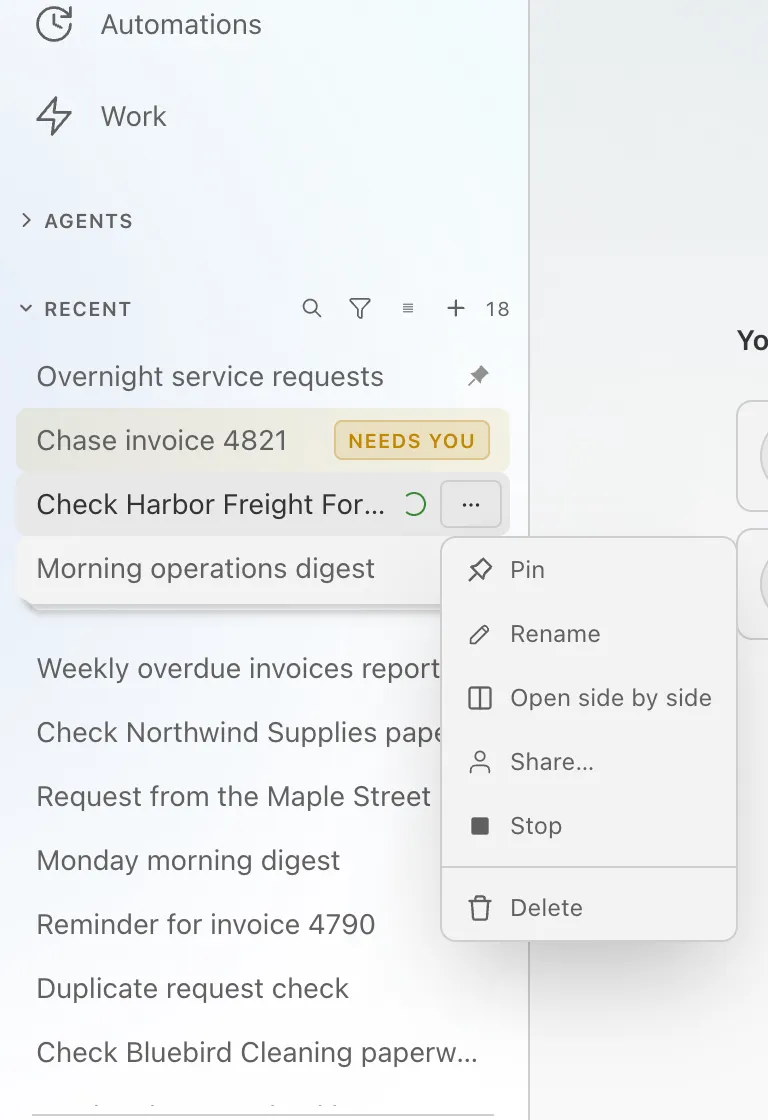
Section titled “The task menu”Every task has one … menu, and it is the same wherever the task is listed: on its row in RECENT (see Recent tasks), on its row in the Tasks list, and in the task page’s header. It appears when you point at the row, and is always shown on a touch screen. Only Train agent is offered on the task page alone.
| Item | What it does | Shown when |
|---|---|---|
| Pin / Unpin | Keeps the task at the head of RECENT for everyone in the workspace | You may pin tasks |
| Rename | Edits the title in place | The place you are in can edit the title, and you may rename |
| Open side by side | Opens the task beside the page | On a computer, not on a phone |
| Share… | Opens the share box — see Sharing | Always |
| Stop | Interrupts the task where it is, as the stop button in the composer does; send it a message to carry on | The task is running and you may stop it |
| Train agent | Asks the task’s agent to offer a training session started with what happened in this task | In the task page’s header only, when you may edit the task’s agent; not on an automation’s task |
| Delete | Asks you to confirm, then deletes the task | You started the task |
Deleting the task you have open takes you to the Tasks list. A change made from the menu — a rename, a pin, a share, a stop or a delete — shows in every list at once, with no refresh.
Beside the page
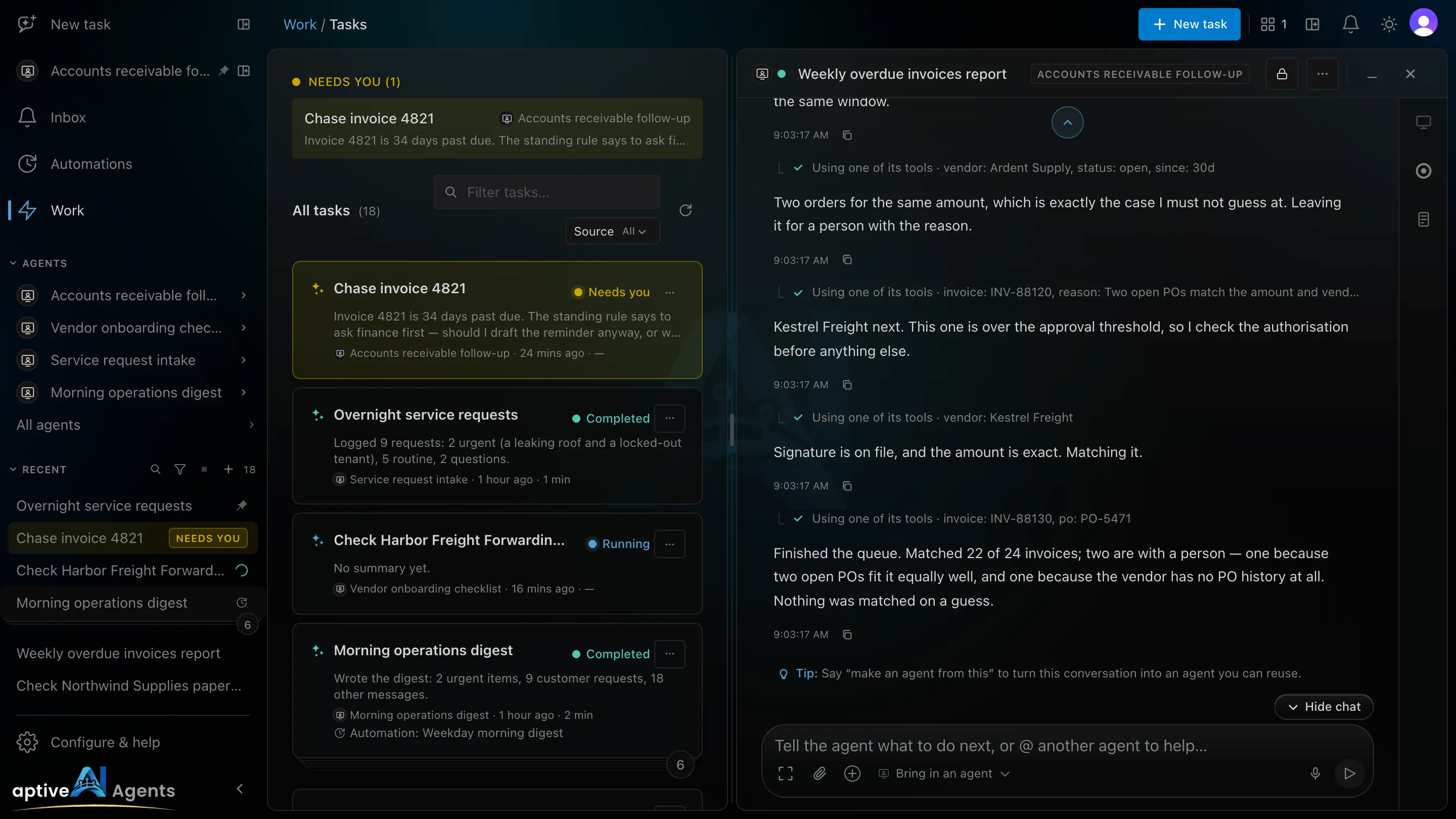
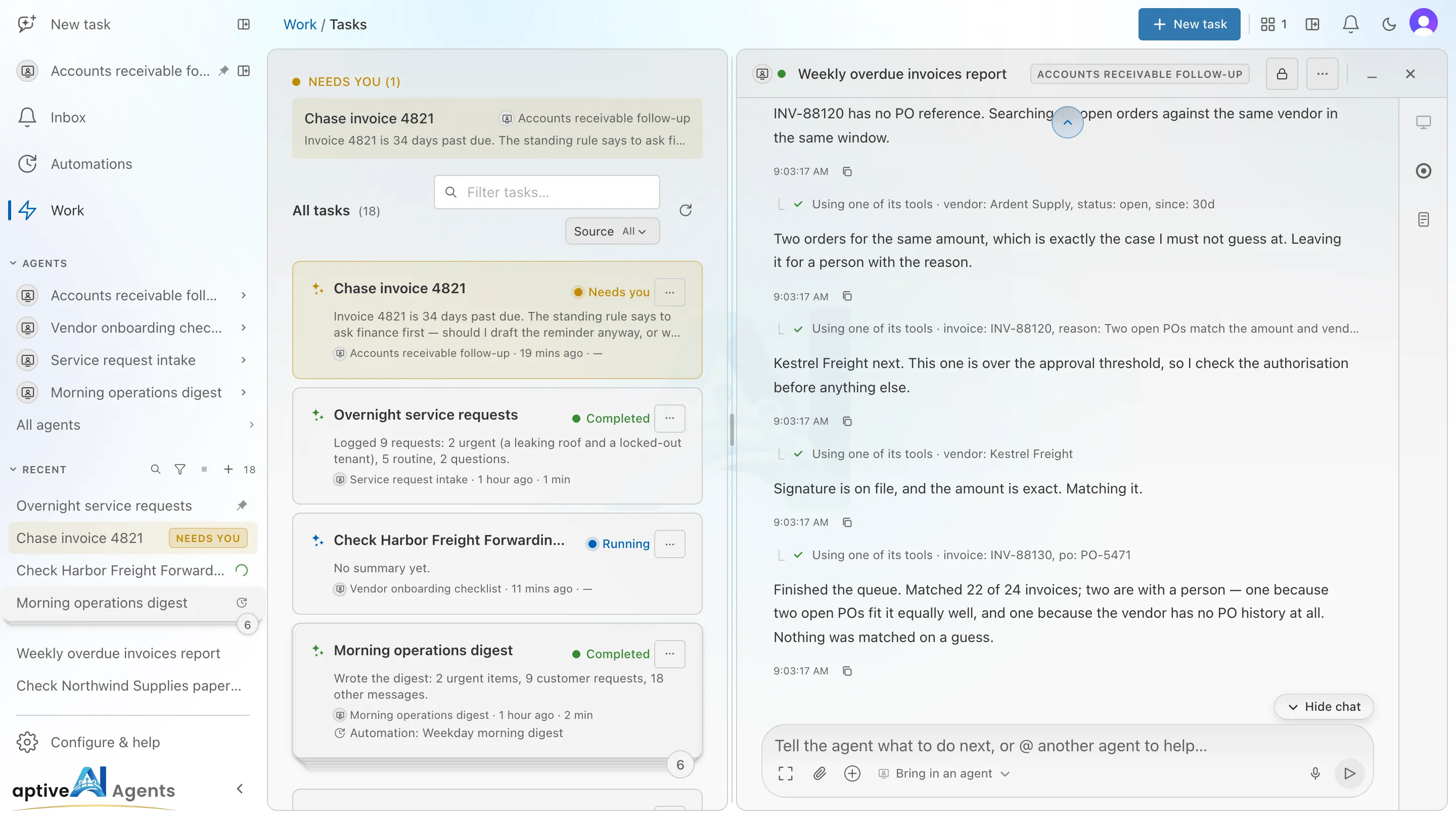
Section titled “Beside the page”You can keep tasks open beside the page you are on, to the right of it, and watch or steer several while you work elsewhere. This is on a computer; a phone has no beside-the-page view.
Open one in any of these ways:
- Open side by side in a task’s menu. If you open the task you are looking at, it moves beside the page and the page goes back to the Tasks list.
- The control at the end of the sidebar’s New task row, which opens a new task beside the page — a window with the composer in it. Sending turns it into the task, in the same place.
- The control on a pinned agent’s row under New task, which does the same with that agent already chosen.
- New task beside the page in the header, just before the bell.
Each window has Minimize, Full screen, Open as a page and Close. A minimized window folds to a strip showing the agent’s icon, the title and its status; while one is full screen the others and the page fold to strips, and Restore the page brings it back. Drag the edges between windows to resize them; double-click to even them out.
Once a task is open beside the page, the header shows Tasks beside the page with how many there are. Its menu lets you Show tasks or Hide tasks (hiding keeps them for later), Close all, Auto arrange or pick a layout — full screen, 2 or 3 columns or rows, or a grid up to 4×4 — and then click a cell to move a window there. The windows you have open are remembered in this browser and come back after a reload.
Sharing and who sees a task
Section titled “Sharing and who sees a task”A task is yours until you share it. The chip in its header — Only you, You + 2 — shows who has access, and selecting it opens the share box.
- People you add can see the task and watch it, live view included. They cannot send messages, answer questions, approve or stop it: for them it is read-only (“You can view this task”).
- Continue in my own task is how a person who can only view a task works on it. It starts a new task of theirs from that point, on their own computer and browser, and leaves the original untouched.
- People who can see the automation that started a task see it too. Only people with Can edit on that automation can answer and approve on its tasks.
- The owner can open any task by its link, to look — it is read-only for them, and it does not appear in their Tasks list. Admins see only the tasks shared with them.
- Only the person who started a task can rename it, share it or delete it.
Copy link gives a short /s/… address. The link only points the way: the
person who opens it still needs access, or to be an owner.
Delete task removes the task from every list, search and link straight away. A deleted task can be recovered for 30 days: ask your workspace owner or AptiveAI support. After that only its conversation can be recovered — see How long a task is kept. A task that is still working cannot be deleted.
The rules are the same for tasks, automations, agents and skills — see Sharing.
The Tasks list
Section titled “The Tasks list”Tasks (under Work) lists every task you can see: its Task name with its summary or the question it is waiting on, the Agent, Status, Started and Duration. Tasks waiting on you are gathered in a Needs you band at the top. Tasks started by the same automation fold into one row you can open.
Narrow the list with the funnel, Filter tasks. Each filter you set becomes a chip you can change or remove, and the funnel shows a dot, so a filtered list never passes for the whole one:
| Filter | Choices |
|---|---|
| Status | Needs you, Running, Finished, Failed |
| When | Today, the last 7 days, the last 30 days |
| Source | All, By me, Automations, Shared with me |
| Agent | One of your agents. Arriving from an agent’s Tasks button on the Agents page (/tasks?agent=…) always shows its chip, so you can remove it |
| Workspace | Only if you are in more than one workspace: narrows the list to one. Each row also names its workspace |
The Needs you band follows the same filters, so a filter that leaves out tasks waiting on you also empties it. Type in the search box to match names, summaries, instructions and more. The list refreshes by itself.
Statuses
Section titled “Statuses”| Status | Meaning |
|---|---|
| Running | The agent is working on it |
| Needs you | Waiting on your answer or approval |
| Paused | The agent has replied, or was interrupted, and is waiting for your next message |
| Completed | Done |
| Failed | Something went wrong; the transcript says what |
| Stopped | Ended on purpose — by a person, or because an approval expired — with the reason recorded |
Older tasks may also show Incomplete, Skipped or Expired, statuses that newer tasks record as Stopped with a reason.
Recent, in the sidebar
Section titled “Recent, in the sidebar”The sidebar’s RECENT list shows the same tasks in a short form, with the same … menu on each row and the same filter. Use it to jump between tasks; use the Tasks list when you want to search or look further back. See Recent tasks.
How long a task is kept
Section titled “How long a task is kept”Every task is kept on the same clock, counted from its last activity — or, once it is deleted, from the moment it was deleted:
| What | Kept for |
|---|---|
| The conversation: your messages, the agent’s questions and approval requests and your answers, and the agent’s replies | 1 year |
| The detail: each tool call, what came back, and system lines | 30 days |
An approval request keeps the conversation’s year: the request, your answer and the record that you approved it, and, for a new agent or a change to an agent, its skills, knowledge or training, or to an automation, what it proposed. The detail of any other approved action — a write to another application, or a secret the agent types — is a tool call, kept 30 days.
When the year is up, the task itself is removed with its conversation. A task that is still working or waiting on someone is never removed. Files have their own, shorter limits — see Files.
Paid access
Section titled “Paid access”Starting or restarting a task needs paid access. Without it, AptiveAI Agents is not shown: everyone who opens it is sent to a page that says why — for example No AI credit is available — with Contact us. The admin area and your account page stay open, with the reason in a banner. A task that was already working when the credit ran out finishes; it is never stopped halfway because credit ran out. See Usage and credit.
Tasks of a standalone agent are paid from the wallet instead, at the agent’s price.