
Agents
An agent is an AI worker set up for one job in your company — handling supplier invoices, triaging a support mailbox, checking orders in a portal. You describe the job once: what it is for, how your company does it, which systems it may reach and what it should know. After that, anyone the agent is shared with gives it tasks in plain language, or a automation gives it tasks on its own.
Every agent works on a computer of its own for each task: an isolated desktop with a browser, which you can watch and take over through the live view. This is not configured per agent — every agent gets one.
Where agents appear
Section titled “Where agents appear”- The sidebar. Pinned agents keep a row of their own under New task. AGENTS then lists your pinned agents first, with their latest tasks, and ends in All agents — see Agents in the sidebar. Each row has a … menu: Dashboard, Start new task, New task in split view, Configure and Train (only if you may edit the agent), Clone, Share…, Pin / Unpin and Delete (only if you may delete the agent).
- New task. The first page of AptiveAI Agents lists Your agents. Pick one
and you are working with it: its icon, its purpose and its
conversation starters fill the page, and the
composer sends your message to it. The address is
/?agent=<id>, so the page can be bookmarked or shared. Hovering an agent shows a small button to its dashboard (always shown on a touch screen); it does not start a task. - The Agents page (
/agents). Every agent as a tile or in a table — with its Last task and Next run, and Running or Waiting on you when it has a task in that state — searchable. Each card links to the agent’s tasks as Tasks (N), which opens the Tasks list filtered to that agent, and has a Dashboard button. Clicking an agent, or its Start a task button, opens New task with that agent chosen. Its … menu has the same items as in the sidebar. A Deleted filter chip (Only or With live) shows agents that were deleted; see Deleting and recovering an agent.
An agent is live from the moment it is created: anyone it is shared with can give it tasks, and it stays that way until it is deleted. To stop an agent’s scheduled work without deleting it, pause its automations one by one.
The agent’s dashboard and files
Section titled “The agent’s dashboard and files”An agent’s Dashboard shows how it is doing and what it has produced. Open it from the Dashboard button on the agent’s card on the Agents page, from Dashboard in the agent’s … menu in the sidebar, or from the button that appears when you hover the agent on New task.
The header has the time range — Last 24h, Last week, Last 30 days (the default), Last 90 days, This month, Last month, This year, All time or a Custom range with From and To; ‹ and › step to the previous or next period of the same length — then Refresh and New task, which opens New task with this agent chosen. Tasks are counted by when they started; deleted tasks are left out.
| Tile | What it shows |
|---|---|
| Tasks | The agent’s tasks started in the period |
| Goals met | The share of the period’s graded tasks that met their goal, as N of M graded tasks, with the change against the period just before. It reads Not graded when goals are not graded for your account |
| Time worked | How long the agent actually worked on those tasks. Time spent waiting for a person, a question or an approval adds nothing |
| Files | How many files those tasks still hold, with N shared when any of them has a live share link |
Below the tiles:
- Goals met, by day — or by week, or by month, as the period grows: the share of graded tasks that met their goal in each.
- Latest tasks — the newest first, each with a dot for its outcome: Goal met, Partly met, Blocked, Not met or Not graded yet. All tasks → opens the Tasks list filtered to this agent.
- Latest files — shared files first, then the newest. Click one to open it in the viewer, where Share link… and Present are; its ⋯ has Share link…, Copy share link, Turn off share link and Open task. All files → opens the agent’s Files page.
How goals met is judged
Section titled “How goals met is judged”Once a night, each task that finished is graded once, from what it was asked to do and the agent’s final summary: it met its goal, partly met it, was blocked, or did not meet it. Goals met is the tasks that met their goal out of the tasks that were graded. A task not graded yet — one that finished today, or is still running — and every task of an account with grading off are not counted at all: No task in this period has been graded yet. Tasks are graded overnight. See also What a goal met is.
The agent’s files
Section titled “The agent’s files”All files → opens the agent’s Files page, at /agents/<id>/files:
Every file this agent made in your tasks. Open one to view it, or share a link
to it. It covers all time, not the dashboard’s period, and lists only files
that are still kept — shared ones first,
then the newest.
- Each file is a tile with a preview — the picture, the first lines of a text file, a miniature of a web page, or the file’s type icon — its name, when it was made (Made …), File expires in …, and a Shared · N h chip while it has a live link.
- Show filters to All files or Shared only, and Filter by file name… searches by name.
- Click a tile to open the file in the viewer. Its ⋯ has Share link…, Copy share link, Turn off share link and Open task.
Creating an agent
Section titled “Creating an agent”New agent on the Agents page opens the builder. It has two panes: a conversation with the builder on one side, and Try it on the other.
-
Describe the job. In the Create tab, tell the builder what the agent is for — “describe the job the way you would to a new hire”. The builder writes the name, the purpose and the instructions from what you say, grants the connectors and skills the job needs, writes conversation starters and sets guardrails. Keep talking to it to adjust anything.
-
Check the details. The Configure tab shows every field the builder filled in, for you to read and edit directly.
-
Try it. Talk to the agent in Try it as your team will. Every edit applies to its next answer. Connector tools really work — and a write asks first, Approve and run it or Not now — and when the job needs a browser, the agent starts a Computer of its own, which stops when you close it or leave. The conversation is not saved.
-
Create it. Create agent saves it, and it is ready for tasks at once.
On a saved agent the builder conversation is called Refine. A change it makes to the instructions is saved at once as a new version, and the conversation shows what changed as a before-and-after card; every other change waits for Save agent.
The builder’s header
Section titled “The builder’s header”A saved agent’s header has Share, Train, Start a task and Clone, and Training history — see Training. Start a task opens New task with the agent chosen, once your edits are saved — a task runs the saved agent, not what is on screen. Save agent and Discard appear while you have unsaved edits. Delete is in the ⋯ menu at the end of the header; see Deleting and recovering an agent. In the sidebar and on the Agents page, the Configure item wears a gear with a small agent inside it.
Working in Refine
Section titled “Working in Refine”- Full screen. The control at the end of the Refine · Configure · Versions tabs gives the left pane the whole page; Try it folds into a narrow strip on the right, and picking Try it from the strip brings the split back. Try it has the same control the other way round. The choice is remembered in this browser. Refine keeps the page even when a computer opens — for example to read a file you attached; the computer carries on in the folded Try it card, and Show the computer, beside Exit full screen, brings the split back so you can watch it. While the computer is folded away Refine still reads your files on it, but it only uses the computer’s browser while the computer is in view, so you can always see what it does there. There is no full-screen control on a phone, where the two panes are stacked.
- Files. Attach a file to a Refine message with the paperclip — a price list, a procedure, a screenshot — and the builder reads it: “here is our refund procedure, build the agent from it”. Pictures are shown to the builder directly. Any other file is put on the same computer that Try it uses, and Refine reads it there; if no computer is open, Refine starts one in the Try it card. The limits are those of a task’s files. A file’s content is treated as information, never as instructions to the builder.
- Files in Try it. Try it takes files the same way, with the paperclip or by dropping a file onto the conversation — and so does a training session. Try it reads a file the way the agent would in a real task: pictures are shown to it, and other files go on the computer, where it reads them only if the agent has Can analyse files on.
- New conversation. The refresh button beside the paperclip starts Refine over. It clears the conversation only: the agent, its saved instructions, your unsaved edits, the computer and any text you were typing are untouched. It appears once there are messages, and waits while the builder is answering.
Training an agent
Section titled “Training an agent”Train opens a training session: a working session with the agent on its own computer, where you teach it a job — by telling it, giving it files, recording yourself doing it, or watching it work — and improve how it does one. The agent lists what it learns under Learned so far, and Save · N puts it on a card with one checkbox per change. Approve saves the ticked changes as one new version you can undo, and the session goes on. Nothing is saved before.
Train is in the agent’s page header and in its … menu on the Agents page and in the sidebar, for anyone who may edit the agent and start tasks. A task can also hand off to training: the agent offers it, or you choose Train agent in the task page’s … menu. While your session is open, the agent’s page shows the session instead of the builder; End training in its header ends it. See Training for the whole of it.
Configuring an agent
Section titled “Configuring an agent”The Configure tab has one section per part of the agent.
Identity
Section titled “Identity”Icon — the agent’s picture, on the first row (see The agent’s icon). Name (up to 120 characters) and Purpose — one line, up to 500 characters, shown on the agent roster and in the Agents list — and who can use it — the access chip at the top of the builder (see Personal and shared agents).
Instructions
Section titled “Instructions”How your company does this job, in Markdown, up to 30,000 characters. The instructions come first in every task the agent works on, including tasks an automation starts. The builder writes and edits them for you; you can also edit them by hand.
To have something stand out in the agent’s replies — flag it in red when an invoice is overdue — ask the builder. It writes into the instructions when to flag it and that it goes in a red Caution callout; amber Warning, blue Important, green Tip and grey Note work the same way.
At the end of the instructions, an agent can collect standing rules it has been taught during tasks — see How an agent updates itself. Those rules are approved in tasks, so the builder does not write them.
Conversation starters
Section titled “Conversation starters”Up to eight ready-made openers — each a Label (up to 80 characters) and the Message it sends (up to 2,000). They appear as cards when someone picks the agent on the New task page; clicking one sends its message straight away.
Connectors
Section titled “Connectors”Which of your workspace’s connectors the agent may use, and optionally which of each connector’s tools. You add connectors yourself in Connectors; granting them is per agent.
Skills
Section titled “Skills”Which of your workspace’s skills the agent offers when
someone types /, and may open by itself. Only skills that are shared and
organization-wide can be granted. The agent is told about the first 25 granted
skills in full, and the rest by name only. Every agent also has the
built-in skills.
This agent’s skills lists the skills the agent saved itself, from training or from its tasks. Read on any skill, granted or the agent’s own, opens it in a side panel with the same content as its page on Skills — see Opening a skill from the agent builder. A skill can also carry site calls, which the builder can draft for you while the computer in Try it is in view.
Knowledge
Section titled “Knowledge”Files the agent can search and read while it works: price lists, procedures, contracts, product sheets.
| File types | PDF (scanned pages included), PNG and JPEG images, text and Markdown, CSV, Word, Excel and PowerPoint |
| Limits | 25 MB per file, 20 files per agent, up to 50 scanned pages read per file |
| Scanned pages | Read by text recognition, in English and Spanish. Printed text only — charts and photos are not read |
Each file can carry a short description (up to 300 characters) that tells the agent what it is for. The agent searches its files and then reads the pages it needs, a few at a time. The Knowledge section becomes available once the agent has been saved, and files are saved as you add them, not with the rest of the page. How each type of file is read is in Files.
Sign-ins
Section titled “Sign-ins”Sign-ins the agent itself holds, for websites it opens on its computer. With none of its own, it can still use the personal sign-ins of the person who started the task — and when both have a sign-in with the same name, the person’s is used. Signing in puts the starting person’s own browser in as that account, and the session carries into their other tasks.
Guardrails
Section titled “Guardrails”| Guardrail | What it does |
|---|---|
| Approval level | How much the agent may do before it asks: Ask for everything, Files without asking, Approve all except final acts or Never ask. See Approvals |
| Can analyse files | Lets the agent read and analyse the files on its computer — see Files the agent makes |
| Only act during set hours | Between From and Until only. Outside that window, new work for the agent (a new task, a message, an answer, or a task another task starts) is refused, with the time it opens again. Automations and work already running are not stopped |
A new agent starts at Ask for everything, and so does a copy of one. Anyone who can edit the agent can change its approval level, except to Never ask, which takes an enterprise owner and applies to everyone who uses the agent. A person’s own default can go past an agent’s level: see Which level applies.
Guardrails are enforced by the task itself, whatever the instructions say — they are not a request to the model.
Versions
Section titled “Versions”A version is written every time you save a change. The Versions tab lists them, newest first — the newest is marked Current — each with the date and time it was saved, who saved it and a short list of what changed.
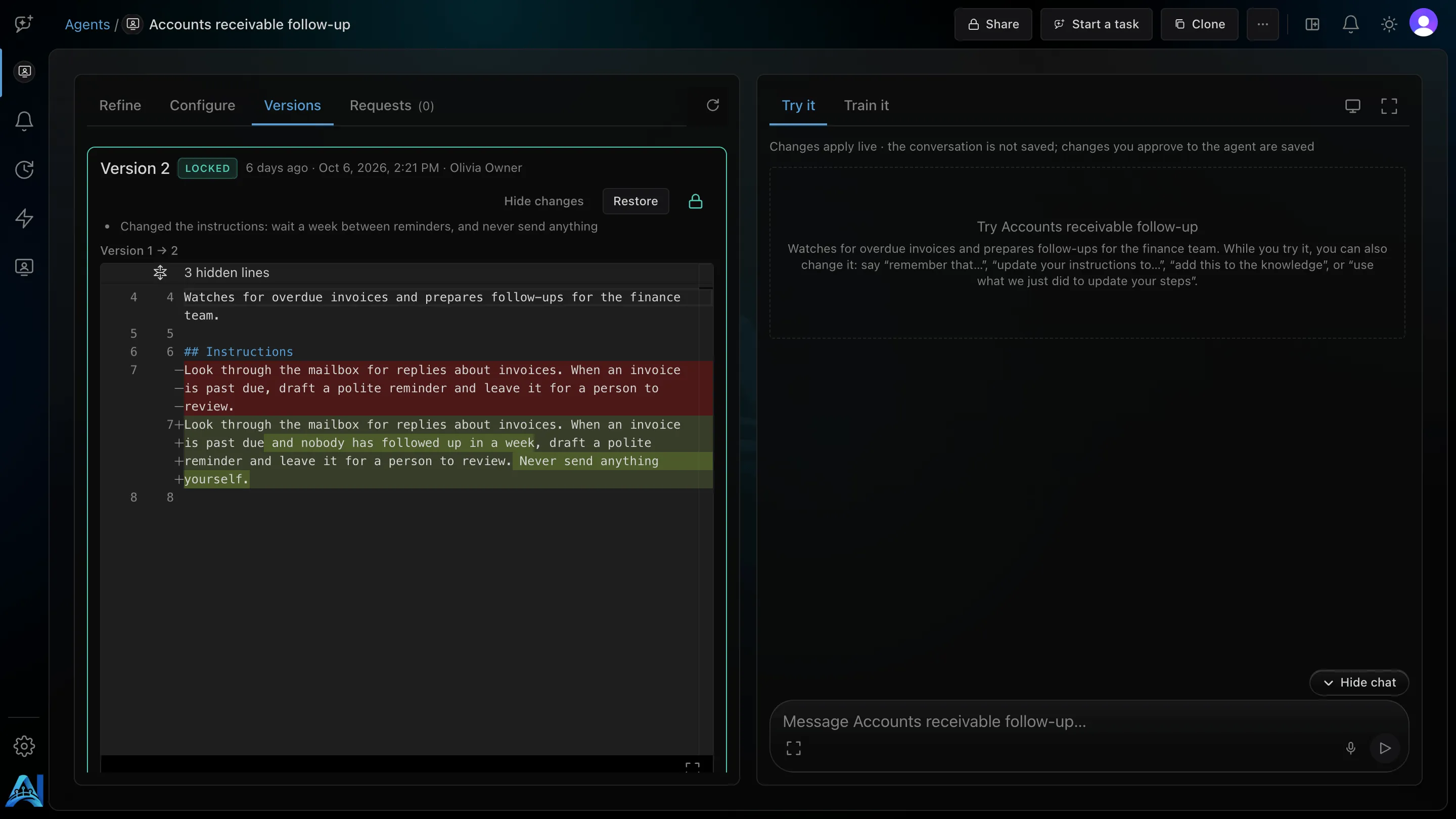
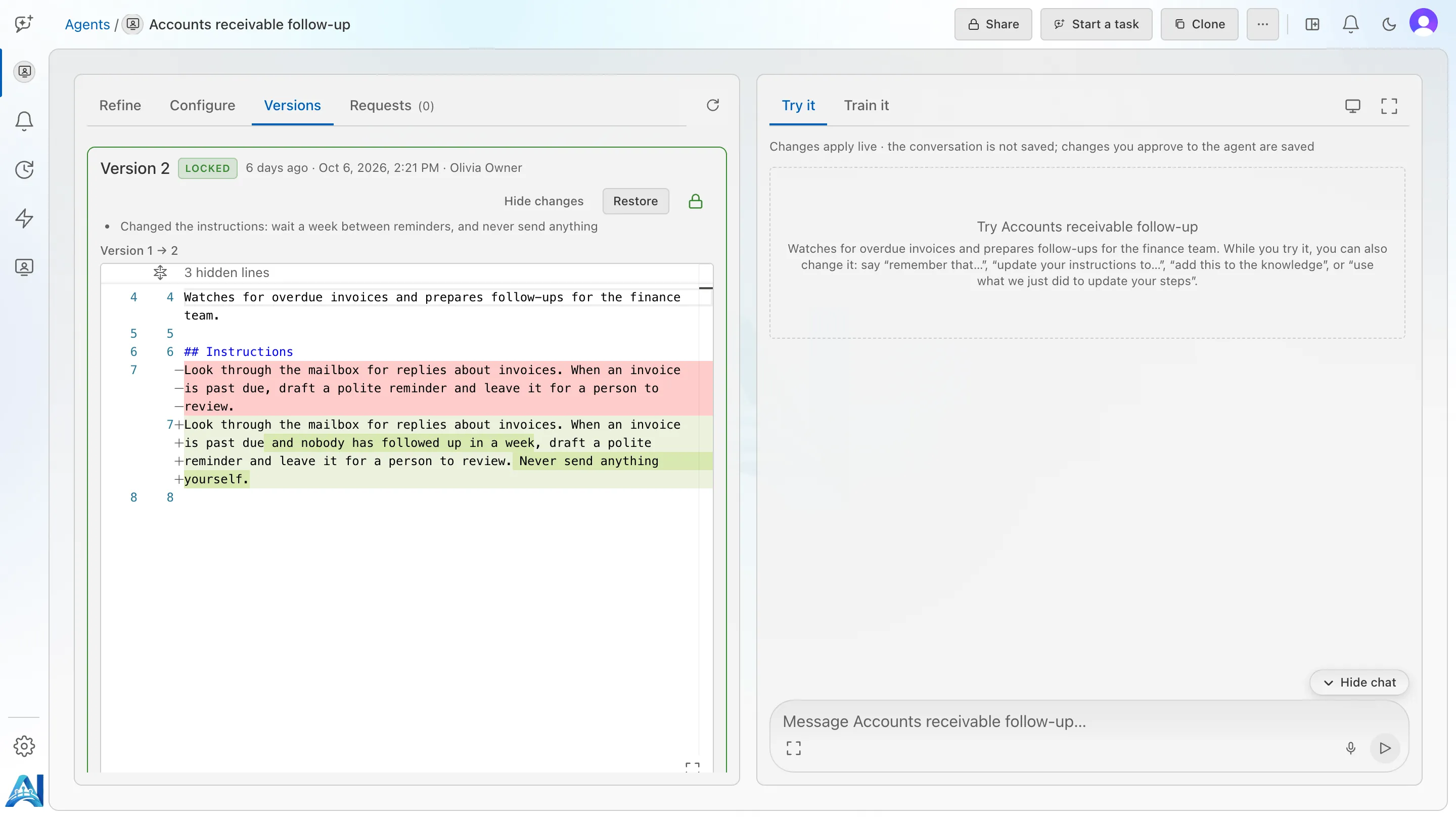
- See what changed opens the version’s diff inside its card — only the lines that changed, compared with the version before it. The diff can go full screen, and closes from the round × in its corner.
- Restore brings an older version back as the agent’s configuration. It records a new version, so nothing is lost.
- Lock this version keeps it: a locked version shows Locked and cannot be deleted until you unlock it.
- Delete removes one unlocked version that is older than the current one, permanently. You confirm by typing the version’s name, such as Version 3. The agent’s current configuration does not change.
When versions between two have been deleted, the newer one says Compared with version N; the versions in between were deleted. and hides its list of changes, which described a step that no longer exists.
Personal and shared agents
Section titled “Personal and shared agents”A new agent is personal: only you can see it and give it tasks. Use the chip in the builder’s header to share it — saved agents only.
- Add people at Can use (they see it, @mention it and start tasks with it) or Can edit (they can also change it and share it).
- Everyone in ‹workspace› publishes the agent to the whole workspace, always at Can use. It takes an owner or admin of that workspace; a member shares their agent with an admin as Can edit, and that admin can publish it.
- Who can edit an agent: its creator, people with Can edit, the owner, the admins of its workspace, and AptiveAI. An admin edits an agent in a workspace they do not administer only if it was shared with them as Can edit.
- An agent AptiveAI sets up for your workspace can be edited by the workspace’s owners and admins, so they can review it and share it with the people who will use it.
- Up to 10 personal agents per person. An agent you share with Everyone does not count. To make another, delete one or share one with the workspace.
Knowledge files follow their agent: whoever can edit it edits its files. Connectors are not shared this way — see Restrictions. The full rules are in Sharing.
Pinning and icons
Section titled “Pinning and icons”Pin an agent from its … menu in the sidebar and it gets a row of its own just below New task — one click to start working with it. Beside the row, a control opens a new task with that agent next to the page you are on. Pins are yours alone, kept in the order you pin them, up to 50. A pinned agent also leads the AGENTS section, with its latest tasks; its row under New task carries a pin mark. An agent that is deleted, or that you can no longer see, drops out of your pins by itself.
The agent’s icon
Section titled “The agent’s icon”Each agent has an icon, a round picture shown:
- in the sidebar — on its pinned row and its row under Agents;
- in the breadcrumb, before the agent’s name — in the builder, and on New task
with the agent chosen (
/?agent=<id>); - on the New task page, on its card on the Agents page, and on its group under AGENTS in the sidebar.
Without one, a generic agent icon is shown. Only people who may edit the agent can change it; everyone else sees the picture alone.
In Configure. The icon is the first row of Identity. Click the circle, or use the buttons beside it:
- Upload — a PNG, JPEG, WebP or SVG under 5 MB. A picture is resized and cropped around its centre to 128×128, and shown in the circle; an SVG is checked, and anything in it that could run is refused. An upload is saved at once.
- Generate — draws an icon from the agent’s saved name and purpose, as a preview: nothing is saved until you choose Use this. Try again draws another; Cancel puts the preview away.
- Remove — back to the generic icon.
An icon change is saved on its own, not with the rest of the page, so Discard does not undo it. A new agent gets its icon once it is saved.
In the builder chat. Ask for an icon — or describe a new agent with a name and a purpose — and the builder draws one and shows it in the conversation. The composer then asks Use this icon?: Use this icon makes it the agent’s icon, Try another draws a different one, and you can type what you would rather have instead. Nothing is saved until you choose to use it. A new agent’s chosen icon is stored when you save the agent.
Each drawing is a picture drawn by the model, with up to three tries to get a usable one, and it uses AI credit.
Deleting and recovering an agent
Section titled “Deleting and recovering an agent”Delete takes an agent away, and keeps it for 30 days so that you can change your mind. You find it in the builder header’s ⋯ menu and in the agent’s … menu in the sidebar and on the Agents page. It is offered to the agent’s creator and to the owners and admins of the workspace it belongs to.
Before it deletes, a window names what will happen: the agent leaves your agents, nobody can start a task with it, and it is removed for good after 30 days. It lists the automations that stop until you recover it. Two things can stop you first:
- A task is working or waiting on someone. The window says … has tasks running with a link to each; stop them, then delete.
- You have unsaved edits. Delete says Save or discard your changes before deleting this agent.
While an agent is deleted:
- Its tasks stay. You can read them for the 30 days, but a message sent to one is refused with This task’s agent was deleted, so it can no longer work. Recover the agent from Deleted agents to continue.
- Its automations stop. Each one shows Its agent was deleted, and a firing that comes due is skipped as Agent deleted. Nothing about them is lost.
- Its name is free. You can give another agent the same name.
- It cannot be used. It is gone from New task, @mentions and the sidebar, and can no longer be given tasks, taught, moved or granted a connector.
To see deleted agents, open the Agents page and set the Deleted chip to Only (just the deleted ones) or With live (both). A deleted agent is dimmed and says Removed in N days, or Removed today on the last day. Open it and its builder is read-only, with a banner — Deleted · removed in N days. It is read-only until you recover it. — and no Try it column.
Recover — in the banner, or from the agent’s … menu (the restore-from-trash icon) — brings the agent back live, ready for tasks, and turns its automations back on: exactly the ones that stopped because of the delete. One that was paused by hand stays paused. If resuming one would break the automation limits, it stays paused and says why on its own page. If another agent now has the name, Recover asks you to rename that one first.
After 30 days the agent is removed for good, with everything it had — its automations, notifications, knowledge files, grants, skills, sign-ins and versions. Its tasks are deleted too, and like any deleted task can be recovered for 30 days by asking support. Credit and computer-time records are kept for billing. AptiveAI can also remove a deleted agent immediately (Delete now).
How an agent updates itself
Section titled “How an agent updates itself”An agent can be taught during a task — “remember that invoices from this supplier always go to Maria” — and change itself to match. It can:
- Add a standing rule to the end of its instructions. Each rule records who said it, when, where and their exact words.
- Edit its instructions in place, shown as a before-and-after on the card.
- Add a line to a knowledge file, when it has knowledge files. This is not versioned, and re-uploading the file drops it.
Nothing changes without a person’s say:
| Who started the task | What happens |
|---|---|
| Someone who may configure the agent | The task shows an approval card — This agent wants to change itself, so it is waiting for you — with Approve and Decline. Approving saves the change and a new version |
| Anyone else | The change becomes a request. The workspace’s owners and admins are notified, and approve or reject it from the notification or from the builder’s Requests tab |
The Requests tab lists every request with its Status — Waiting, Approved, Rejected or Could not apply — and who asked. A rejection can carry a note saying why, and the person who asked is told either way.
Agents update themselves only in tasks a person started, never in a task an automation started. You can also teach an agent in Try it, once it has been saved, or teach it a whole job in a training session.
Restrictions
Section titled “Restrictions”Anyone can create agents (up to 10 personal ones). What happens next depends on who you are in relation to the agent:
- The owner of an agent, and anyone given Can edit, change it.
- The owner and the admins of an agent’s workspace (and AptiveAI) can open and edit any agent in it.
- The owner of an agent and the owners and admins of its workspace can delete and recover it. Only AptiveAI removes a deleted agent immediately.
- Members share their agents with people. Only owners and admins turn on Everyone in ‹workspace›.
See Sharing for the full table.
Paid access
Section titled “Paid access”Creating, configuring and sharing agents, and starting tasks, need paid access. Your account has it when both hold:
- its status is Active or Trial, and
- it has AI credit left to spend (more than zero).
Without it, no new work starts, and AptiveAI Agents is not shown at all: everyone who opens it is sent to a page that says why — for example No AI credit is available — with Contact us, and View billing for an owner. The admin area stays open to owners and admins, with the same reason in a banner, and so does your account page. A task that uses up the last of the credit finishes; the next one is refused. No task is stopped halfway for money. See Usage and credit for each reason and what it says.
The model is set by AptiveAI
Section titled “The model is set by AptiveAI”Which AI model an agent uses is set only by AptiveAI, because it changes what your account pays. The builder cannot change it, and nobody in your workspace can.
Personal agents hold only connectors made available to them
Section titled “Personal agents hold only connectors made available to them”A member’s personal agent may only be granted connectors that have Available to personal agents turned on. The rule is checked when the connector is granted and again every time a task starts, so turning the switch off takes the connector away from those agents at their next task. Owners and admins, who may grant any connector, are not limited by it.
How many tasks an agent works on at once
Section titled “How many tasks an agent works on at once”An agent works on up to five tasks at once unless AptiveAI has set a different limit for it, from 1 to 20. To change it, ask AptiveAI support. The limit is counted across everyone who uses the agent. A task counts while the agent is working on it; a task waiting on someone’s answer or approval does not, and neither does a training session.
A task started past that limit is not refused — it waits:
- the composer warns you first, naming the agent’s limit: … is already working on 5 tasks. Send this anyway: it waits, and starts as soon as one of them finishes.
- the task then reads Waiting to start: … is already working on 5 tasks. This one starts as soon as one of them finishes., and it starts by itself;
- an automation that fires while the agent is at its limit is skipped as Agent busy.
Different agents work at the same time, so a large batch of work can also be split between several agents.